

Zoho Recruit
Connect Zoho Recruit so that Talent Unlimited can pull in your live jobs and candidates, then send screening and interview results back to Zoho.
This guide is for the workspace admin who sets up the connection. There are three steps:
- Connect Zoho Recruit in Talent Unlimited.
- Find your Integration ID and widget key.
- Install the Talent Unlimited extension in Zoho Recruit.
We also recommend you set up the Applications module in Zoho Recruit.
Before you start
Section titled “Before you start”You need:
- A Talent Unlimited admin account.
- A Zoho Recruit administrator account. You need it to approve access and to install the extension.
- Your Zoho region. Look at the address you use to sign in to Zoho. For example,
recruit.zoho.eumeans your region is Europe (.eu).
What Talent Unlimited can access
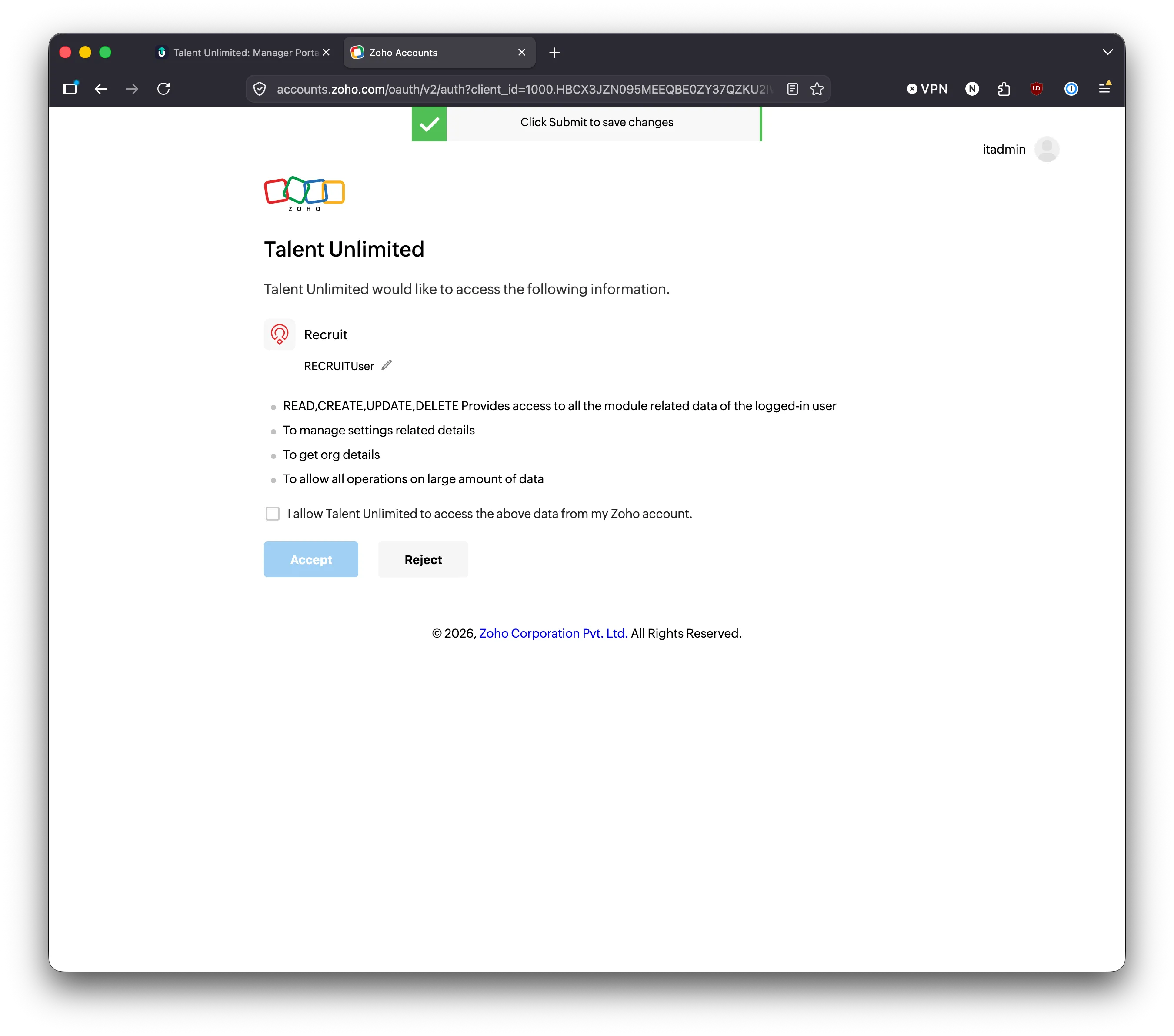
Section titled “What Talent Unlimited can access”When you connect, Zoho asks you to approve these permissions:
| Zoho permission | What it lets Talent Unlimited do |
|---|---|
ZohoRecruit.modules.ALL |
Read and write records such as job openings, candidates and applications |
ZohoRecruit.settings.ALL |
Read your Zoho Recruit settings, such as fields and statuses |
ZohoRecruit.org.READ |
Read basic details about your Zoho organisation |
ZohoRecruit.bulk.ALL |
Import large numbers of records at once |
Step 1: Connect Zoho Recruit
Section titled “Step 1: Connect Zoho Recruit”-
In Talent Unlimited, go to Settings, then Integrations.
-
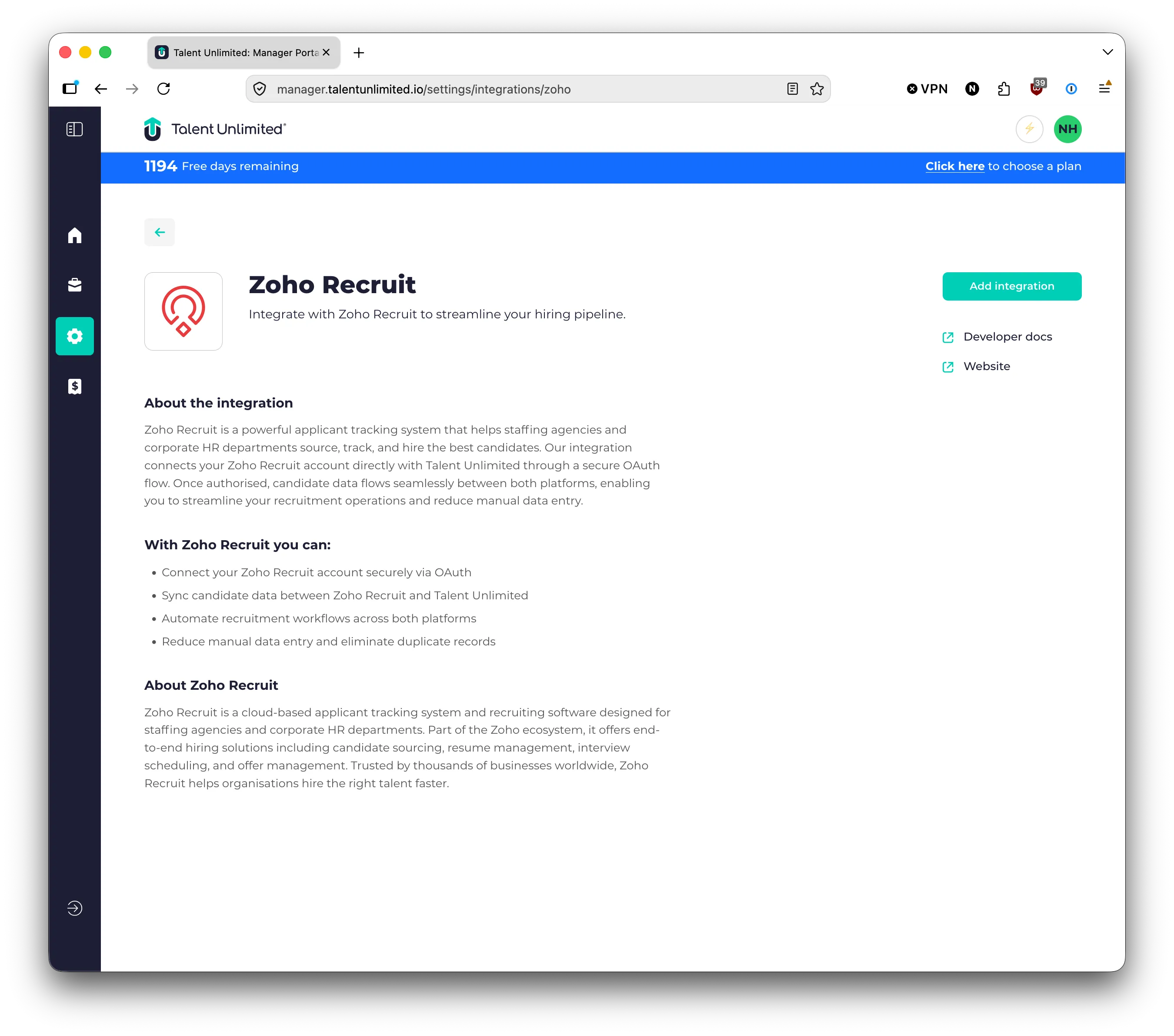
Click Zoho Recruit.
-
Click Add integration.
-
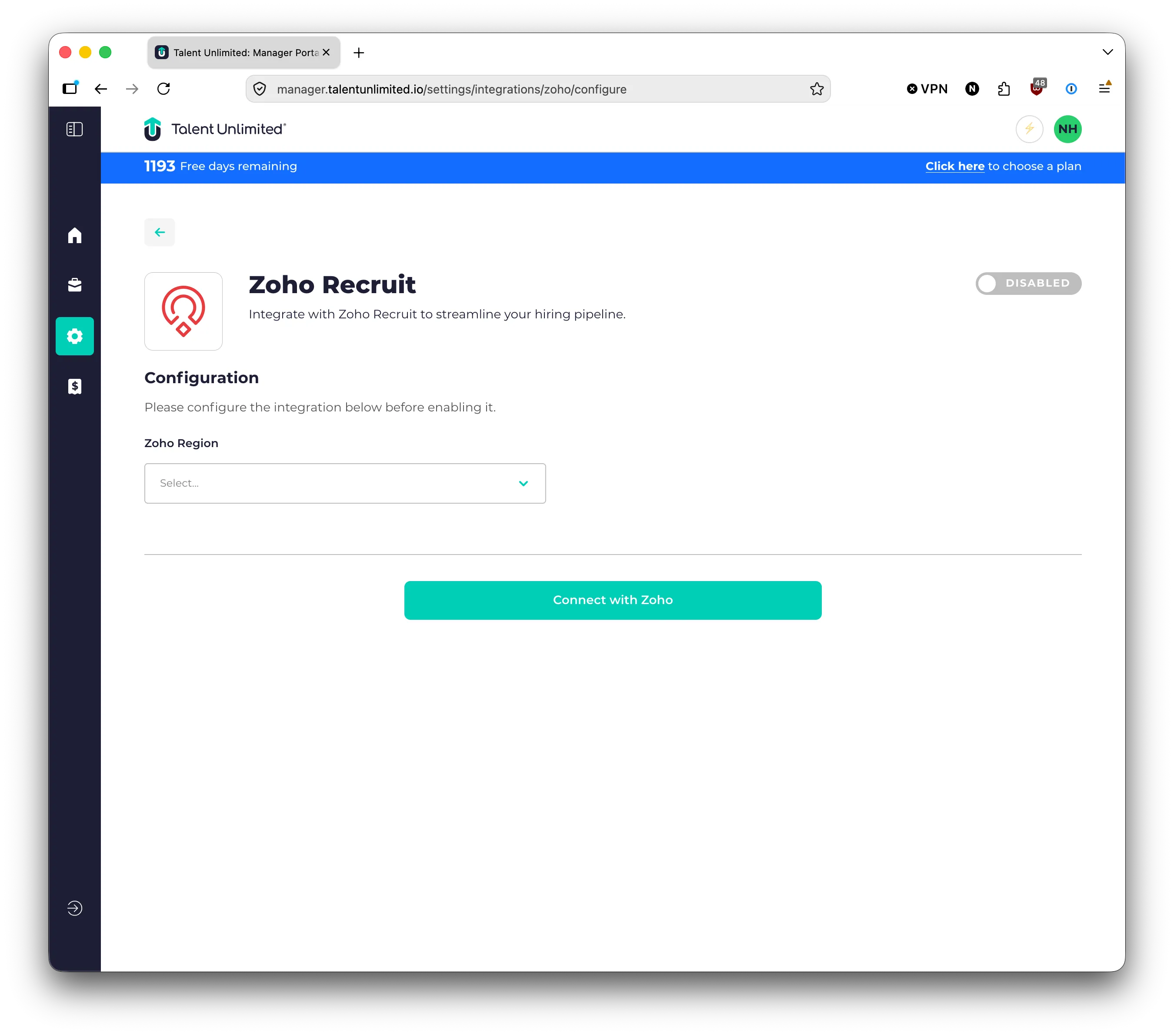
Under Zoho Region, choose the region your Zoho account is in: United States (.com), Europe (.eu), India (.in), Australia (.com.au) or China (.com.cn).
-
Click Connect with Zoho. Zoho opens in a new tab.
-
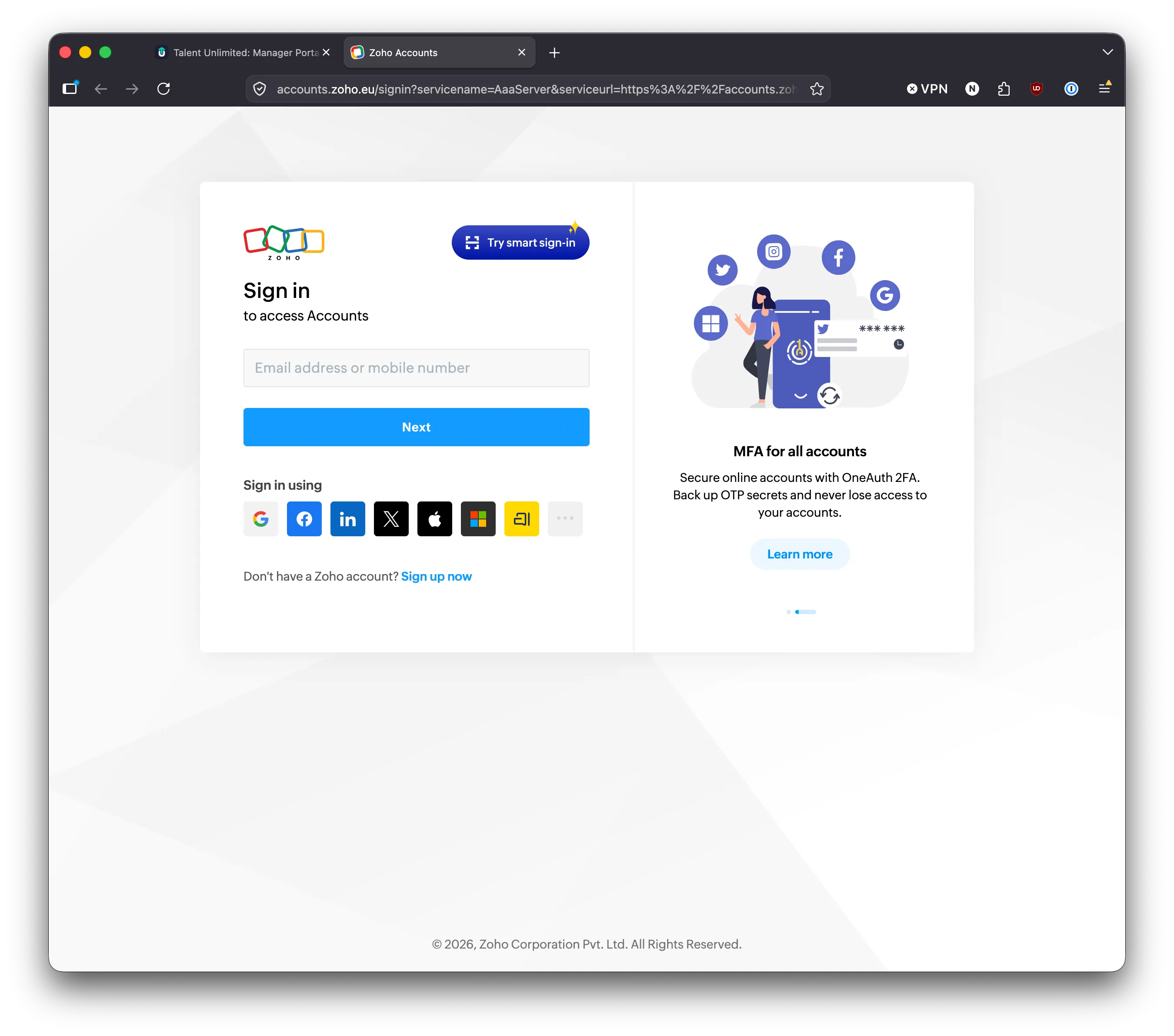
Sign in to Zoho if asked.
-
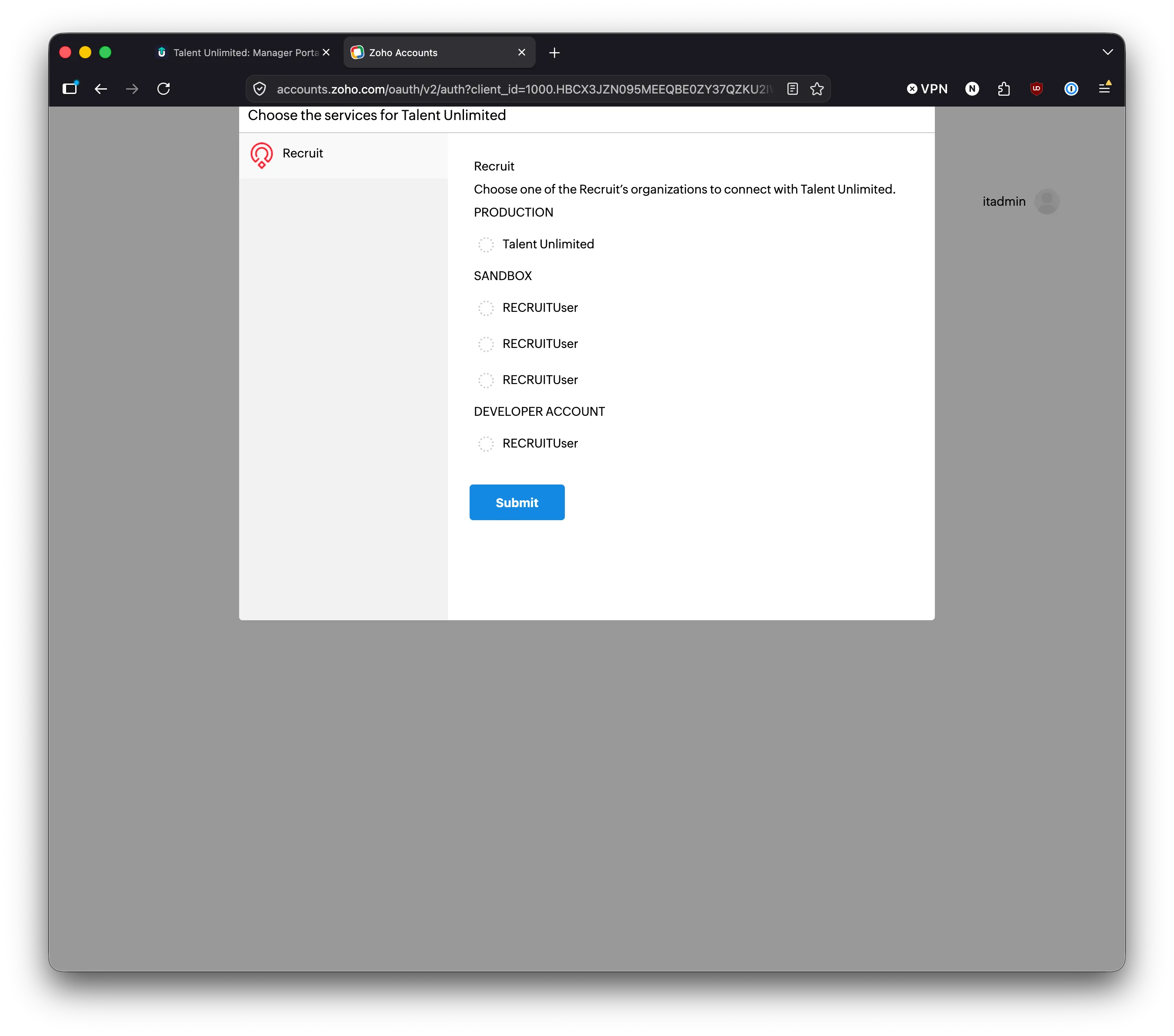
Choose the Zoho Recruit organisation to connect, then click Submit. Choose your organisation under PRODUCTION, unless you are setting up a test in a sandbox.
-
Review the permissions. Tick I allow Talent Unlimited to access the above data from my Zoho account, then click Accept.
-
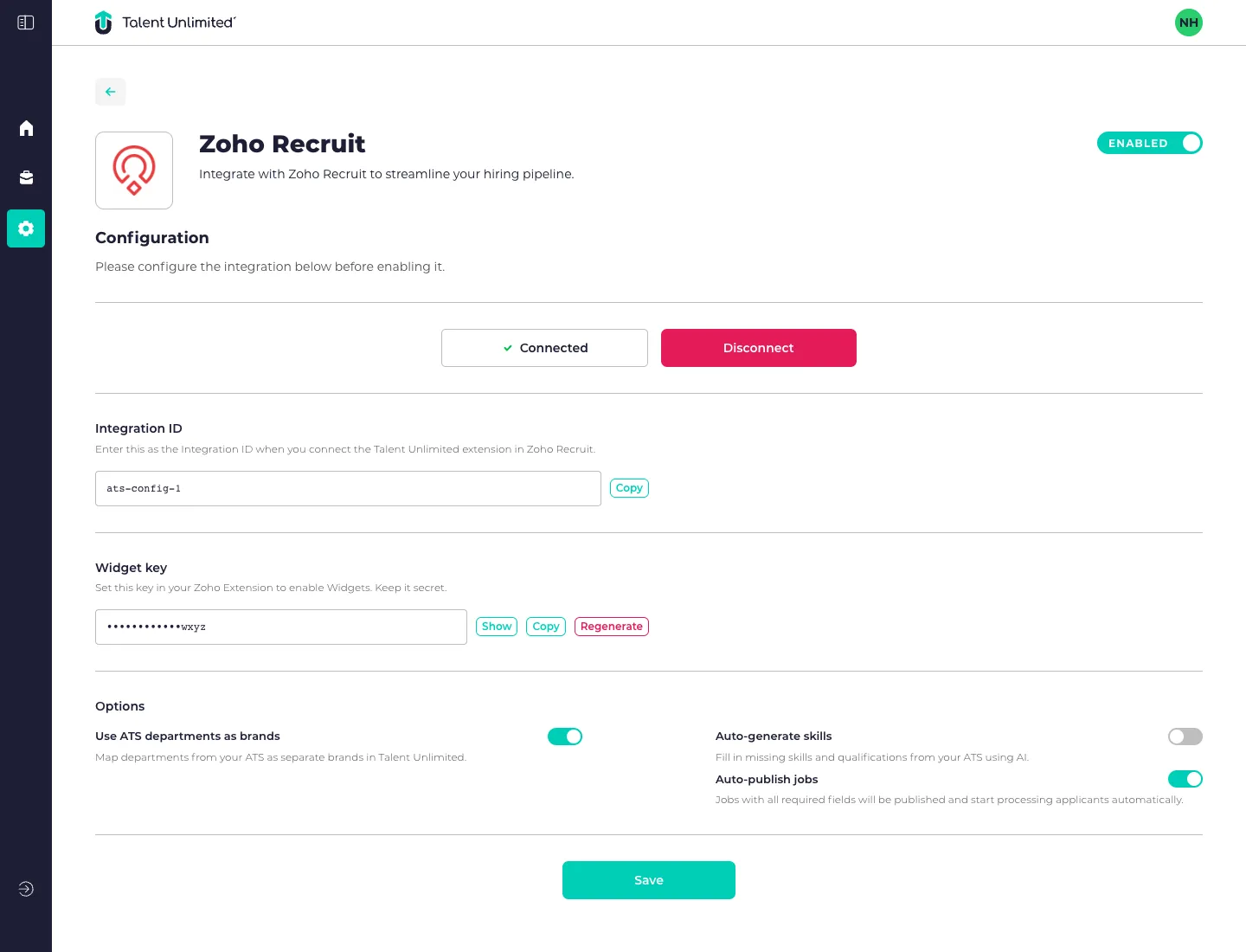
Switch back to Talent Unlimited. The integration shows Connected. If it does not, refresh the page.
-
Make sure the switch at the top of the page is set to Enabled.
Options
Section titled “Options”After you connect, you can choose these options. Click Save when you are done.
- Use ATS departments as brands: map departments from Zoho as separate brands in Talent Unlimited.
- Auto-generate skills: fill in missing skills and qualifications from Zoho using AI.
- Auto-publish jobs: jobs with all required fields are published and start processing applicants automatically.
Step 2: Find your Integration ID and widget key
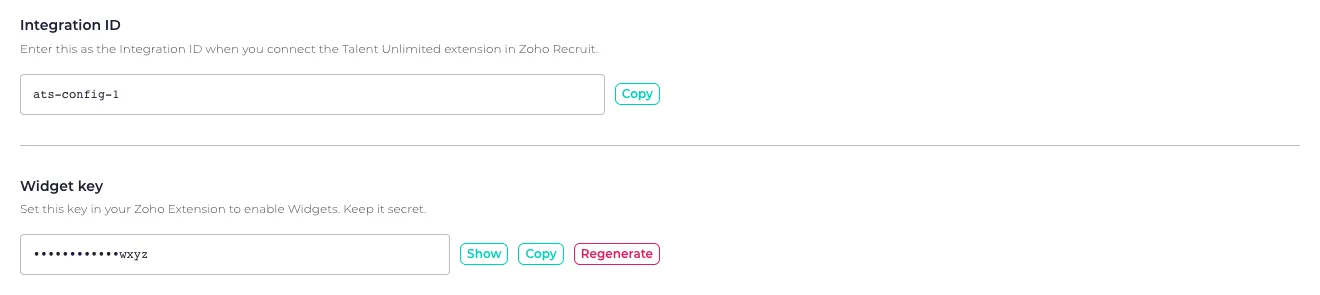
Section titled “Step 2: Find your Integration ID and widget key”Once Zoho Recruit is connected, two new sections appear on the same page. You need both values in the next step.
- Integration ID identifies your Talent Unlimited connection.
- Widget key lets the Talent Unlimited extension in Zoho Recruit show screening and interview results.
Each has a Copy button. Leave this page open so you can copy them in the next step.
Step 3: Install the Talent Unlimited extension
Section titled “Step 3: Install the Talent Unlimited extension”The Talent Unlimited extension for Zoho Recruit sets up everything Talent Unlimited needs in your Zoho organisation:
- The AI SmartScreens and AI Interviews modules, where SmartScreen and interview results are saved.
- The TalentBank Matches module.
- The custom fields these modules use.
- Workflows that tell Talent Unlimited straight away when a job or candidate changes in Zoho.
You must install the extension. Without it, jobs and candidates still sync, but no results appear in Zoho.
-
Sign in to Zoho Recruit as an administrator.
-
Open the Talent Unlimited extension in the Zoho Marketplace.
-
Click Install and follow the steps in Zoho.
-
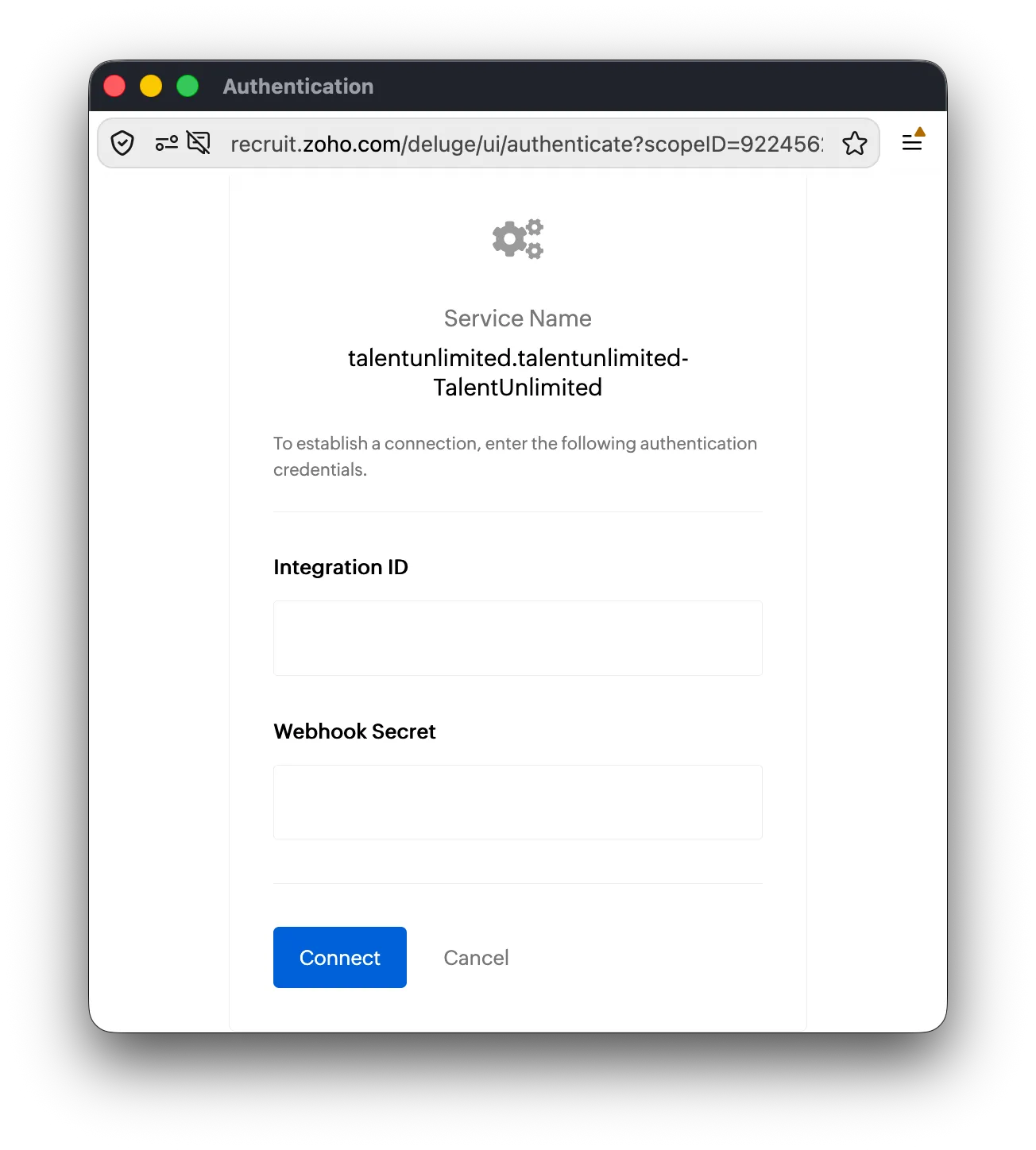
Zoho asks for authentication credentials for talentunlimited.talentunlimited-TalentUnlimited. Enter:
- Integration ID: in Talent Unlimited, click Copy next to Integration ID and paste it here.
- Webhook Secret: in Talent Unlimited, click Copy next to Widget key and paste it here.
-
Click Connect.
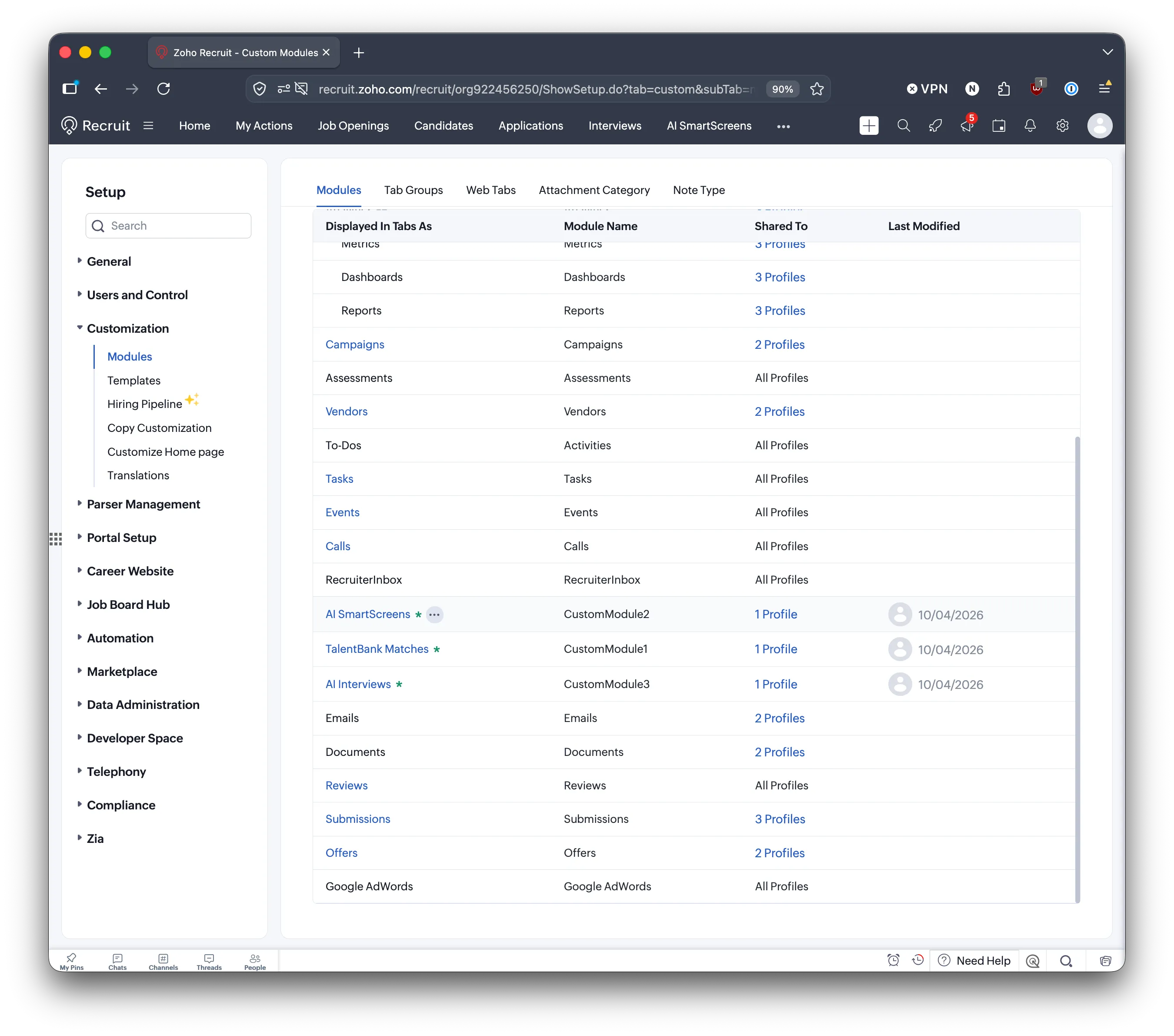
When the install is done, the AI SmartScreens, AI Interviews and TalentBank Matches modules appear in Setup, under Customization, then Modules.
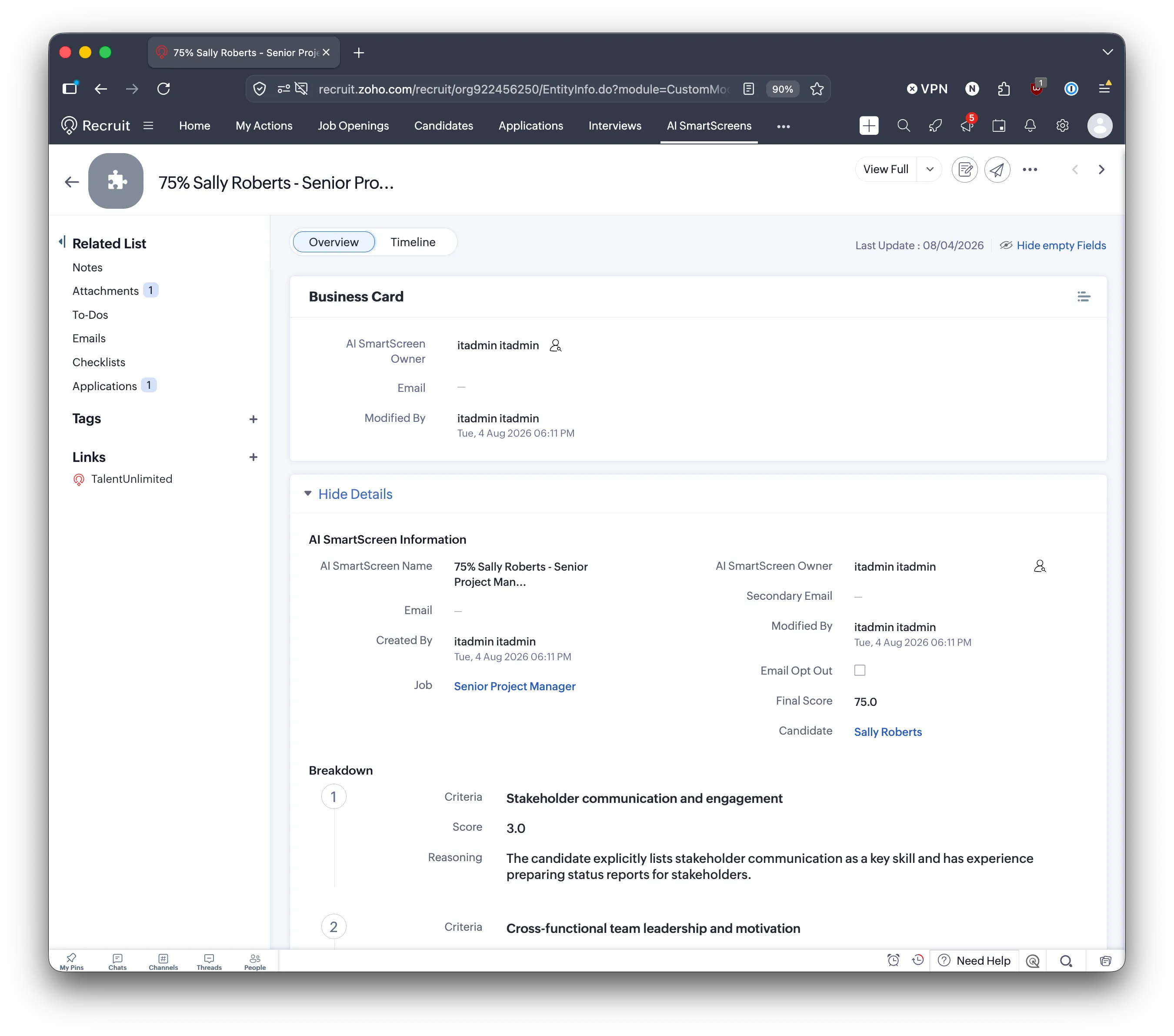
Results start to appear on new applications within 15 minutes. Each SmartScreen result shows the final score and a breakdown of how the CV scored against each criterion.
Recommended: set up the Applications module
Section titled “Recommended: set up the Applications module”The Applications module in Zoho Recruit keeps a separate record for each job a candidate applies to. The extension does not set it up for you. It is optional, but we strongly recommend it.
When it is set up, Talent Unlimited:
- Attaches the CV and the screening or interview report to each application, not only to the candidate.
- Links each application to its SmartScreen and interview results.
- Adds notes on the right application, even when a candidate applies to more than one job.
- Gives recruiters links and buttons on each application to open its results.
Without it, Talent Unlimited saves results on the candidate record only.
Install the extension first. These steps use the AI SmartScreens and AI Interviews modules that it adds.
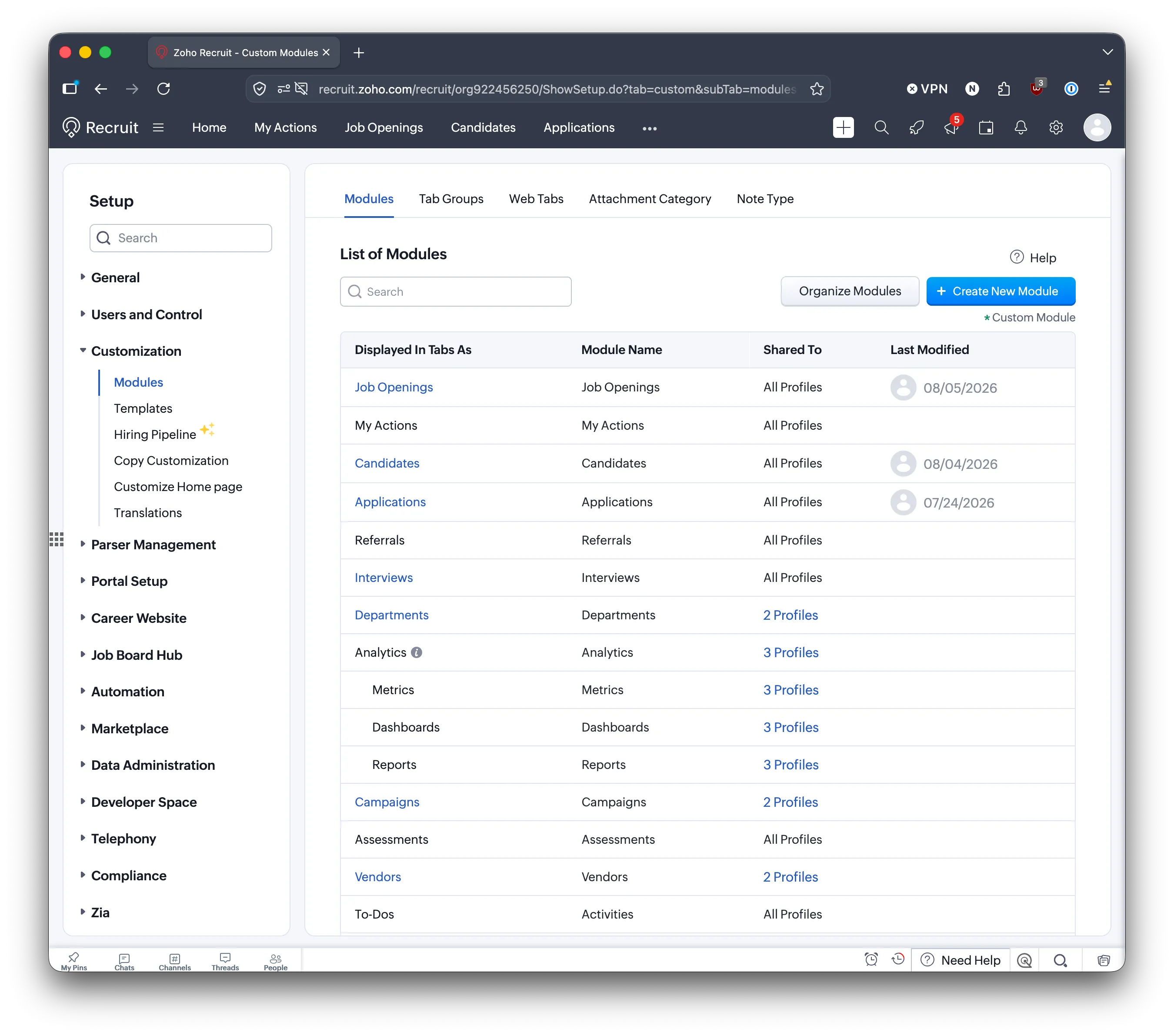
Open the Applications module settings
Section titled “Open the Applications module settings”-
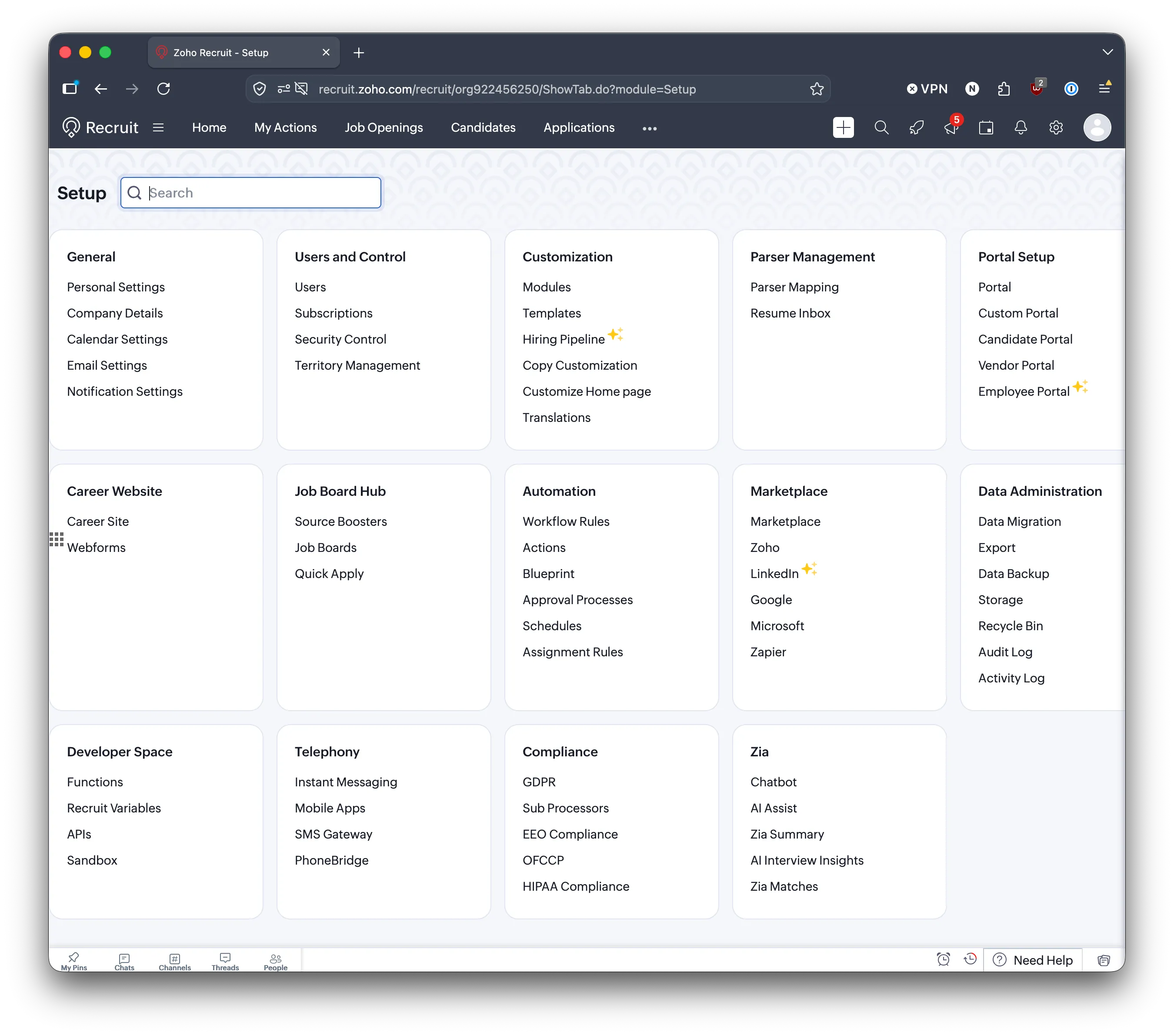
In Zoho Recruit, click the settings icon at the top right to open Setup.
-
Under Customization, click Modules.
-
Click Applications. If you do not see Applications in the list, email support@talentunlimited.io.
Add the result fields
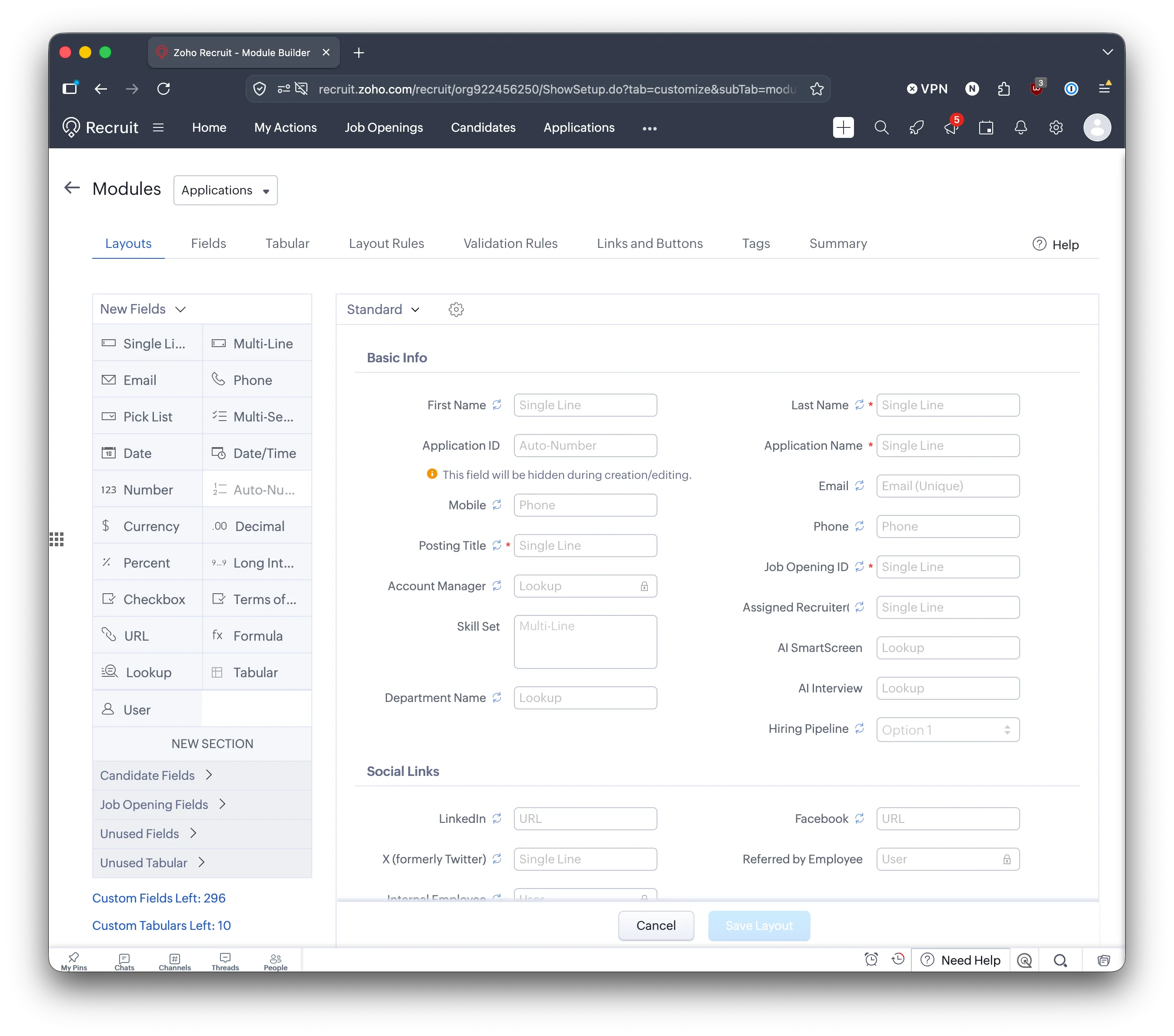
Section titled “Add the result fields”Add two lookup fields to the Applications layout.
-
On the Layouts tab, drag Lookup from New Fields onto the layout.
-
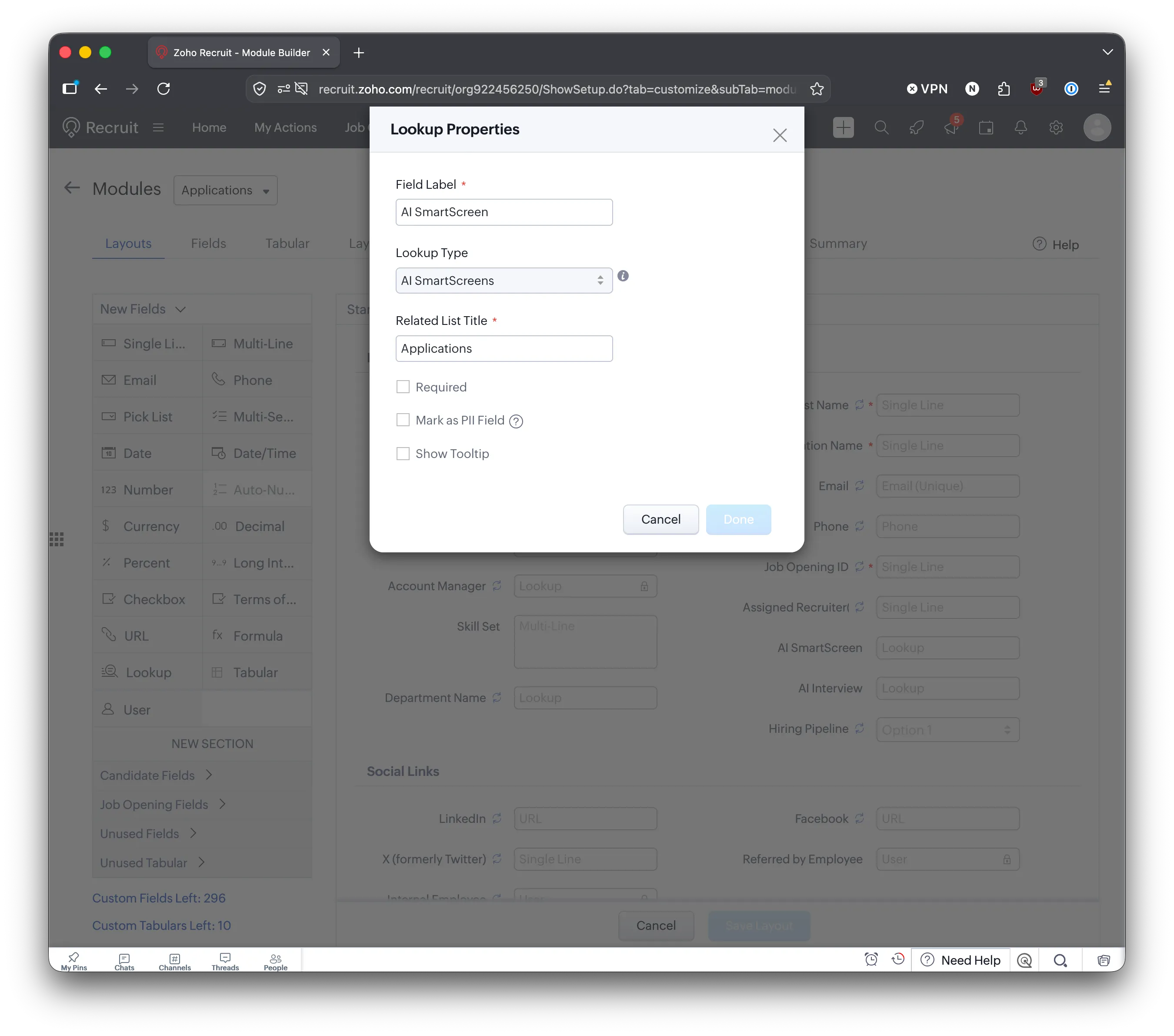
In Lookup Properties, enter:
- Field Label:
AI SmartScreen - Lookup Type: AI SmartScreens
- Related List Title:
Applications
- Field Label:
-
Click Done.
-
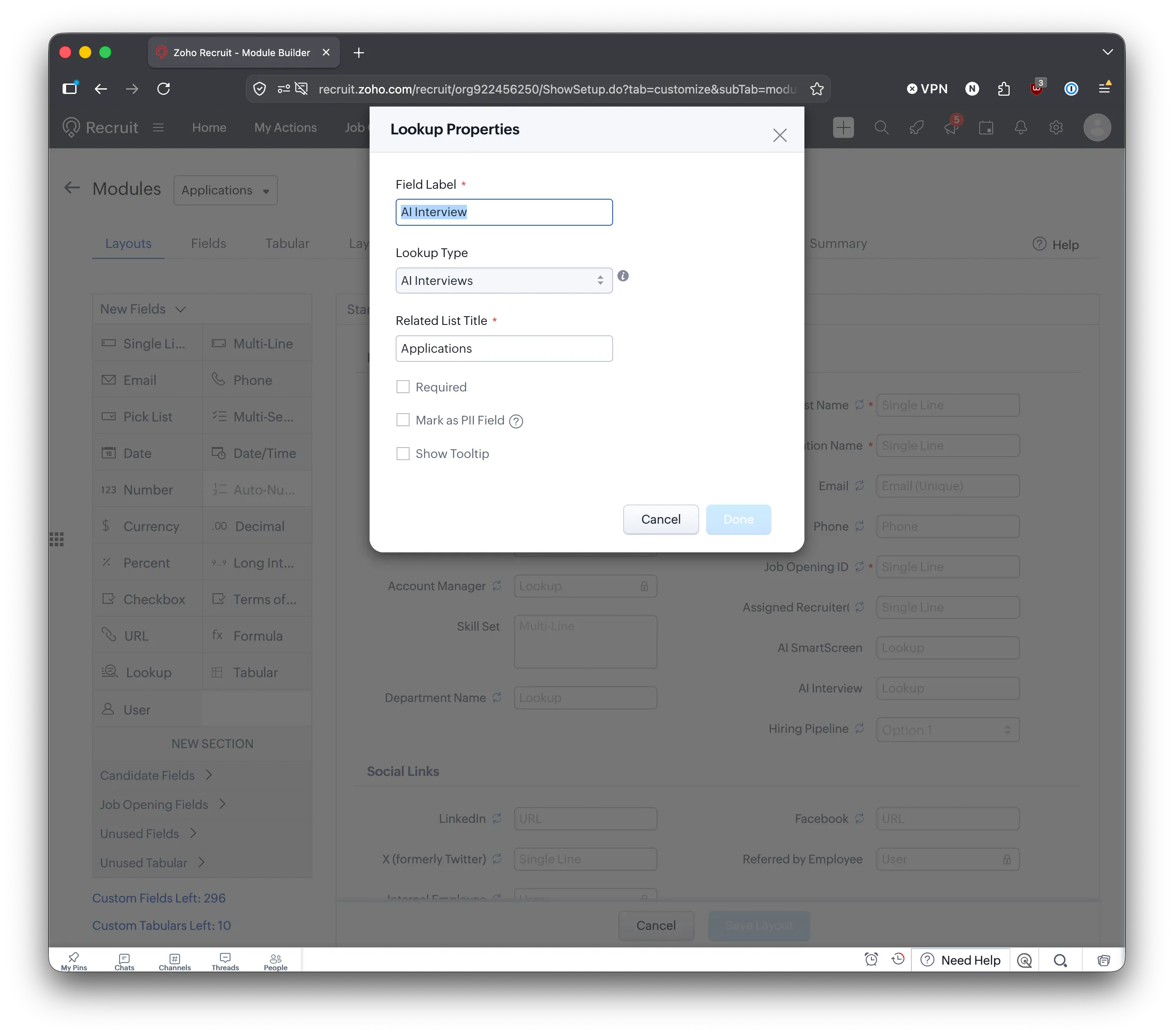
Drag another Lookup onto the layout and enter:
- Field Label:
AI Interview - Lookup Type: AI Interviews
- Related List Title:
Applications
- Field Label:
-
Click Done.
-
Click Save Layout.
Add links and buttons
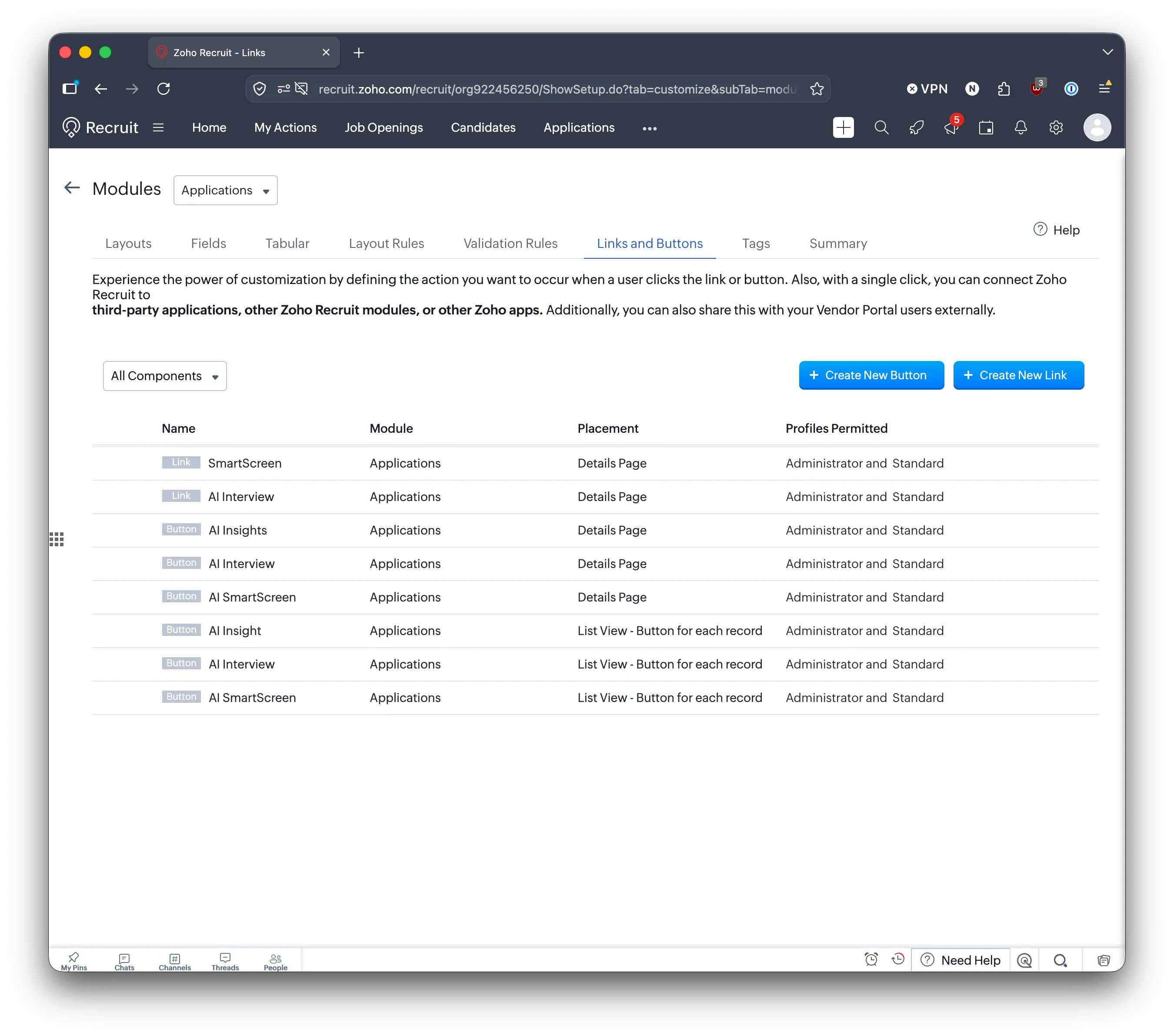
Section titled “Add links and buttons”Links and buttons let recruiters open Talent Unlimited results from an application in Zoho Recruit. Open the Links and Buttons tab. You add eight items in total: two links and six buttons.
| Type | Name | Placement | What it does |
|---|---|---|---|
| Link | SmartScreen | Details Page | Opens the application’s AI SmartScreen record |
| Link | AI Interview | Details Page | Opens the application’s AI Interview record |
| Button | AI Insights | Details Page | Shows a summary of the candidate: CV insights, SmartScreen and interview |
| Button | AI SmartScreen | Details Page | Shows how the candidate scored against the job requirements |
| Button | AI Interview | Details Page | Shows the AI interview summary and scores |
| Button | AI Insights | List View - Button for each record | Same as above, from each row of the Applications list |
| Button | AI SmartScreen | List View - Button for each record | Same as above, from each row of the Applications list |
| Button | AI Interview | List View - Button for each record | Same as above, from each row of the Applications list |
When you are done, the list looks like this:
Copy each URL exactly, including the parts in ${...}. Zoho fills these in for each application.
Add these two links. For each one:
- Click Create New Link.
- Enter the Label and the URL from the table.
- Under Set Permission, choose Administrator and Standard.
- Click Save.
| Label | URL |
|---|---|
| SmartScreen | https://api.talentunlimited.io/ats/redirect/zoho/application/${Applications.Application Id}/smartscreen |
| AI Interview | https://api.talentunlimited.io/ats/redirect/zoho/application/${Applications.Application Id}/interview |
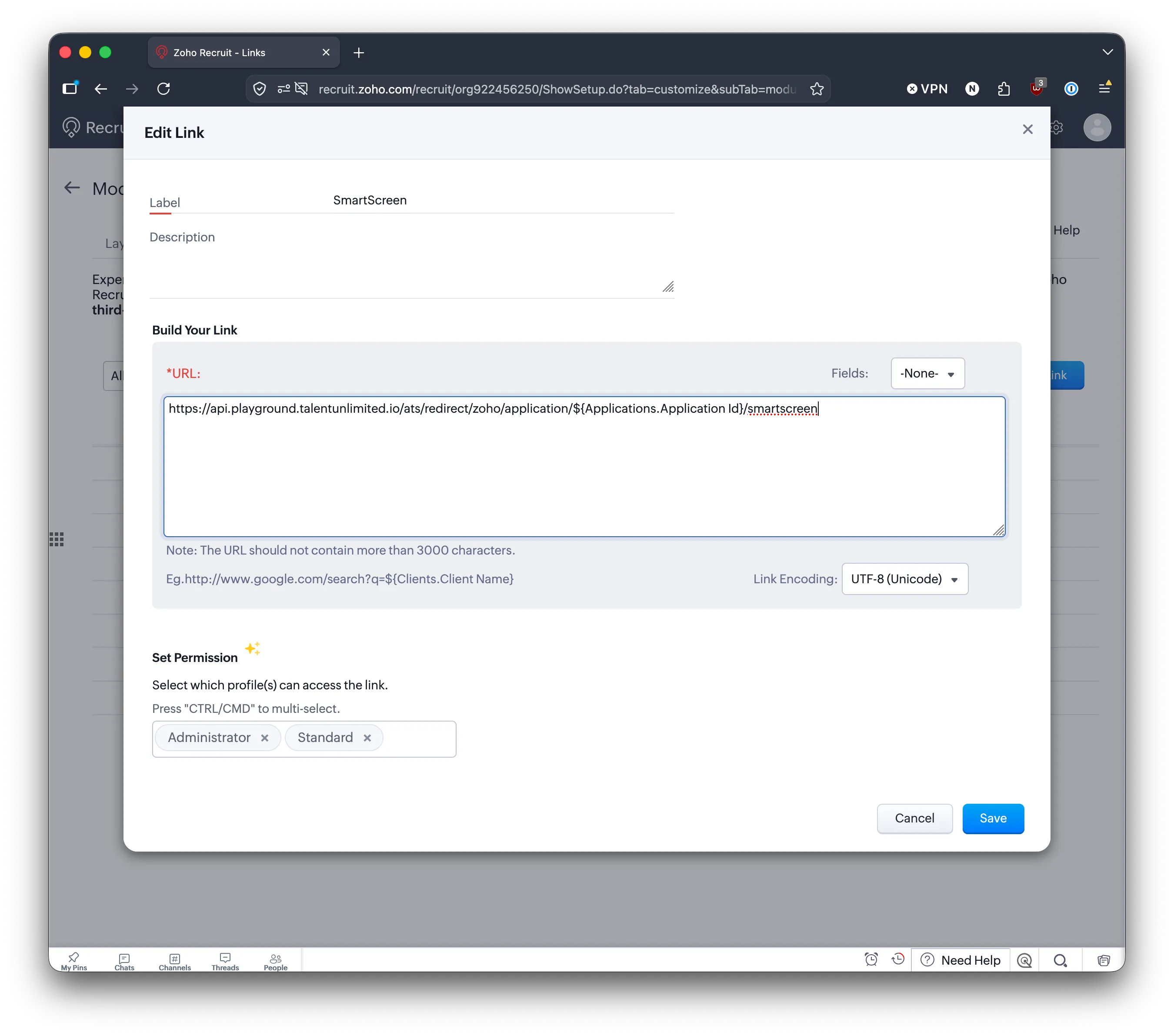
If an application has not been screened or interviewed yet, its link shows a “not found” page.
Buttons
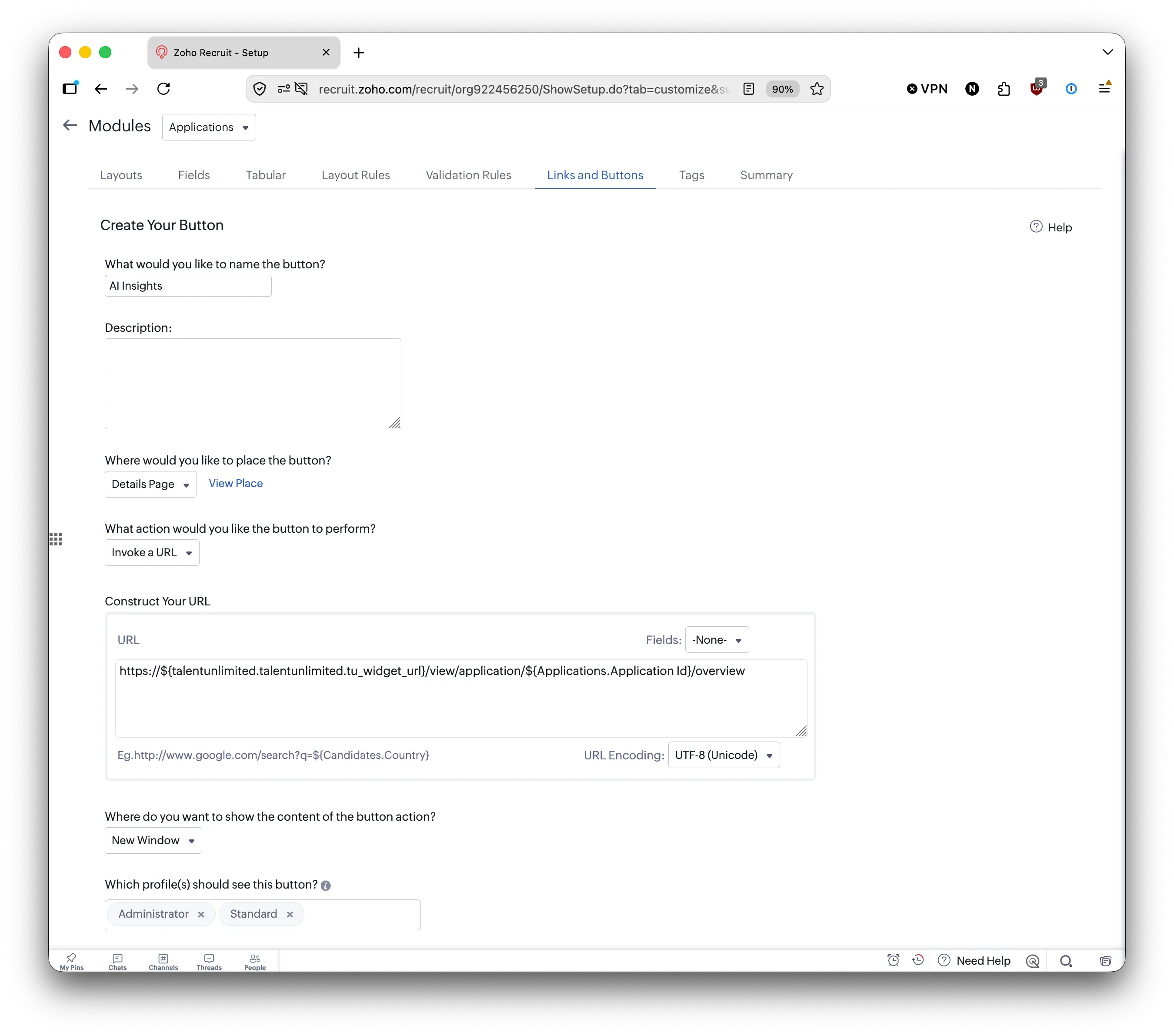
Section titled “Buttons”Add each of these three buttons twice: once on the Details Page, and once on List View - Button for each record. For each one:
- Click Create New Button.
- Enter the name from the table.
- Under Where would you like to place the button?, choose Details Page the first time, and List View - Button for each record the second time.
- Under What action would you like the button to perform?, choose Invoke a URL.
- Enter the URL from the table.
- Under Where do you want to show the content of the button action?, choose New Window.
- Under Which profile(s) should see this button?, choose Administrator and Standard.
- Save the button.
| Name | URL |
|---|---|
| AI Insights | https://${talentunlimited.talentunlimited.tu_widget_url}/view/application/${Applications.Application Id}/overview |
| AI SmartScreen | https://${talentunlimited.talentunlimited.tu_widget_url}/view/application/${Applications.Application Id}/smartscreen |
| AI Interview | https://${talentunlimited.talentunlimited.tu_widget_url}/view/application/${Applications.Application Id}/interview |
What syncs
Section titled “What syncs”| From | To | What |
|---|---|---|
| Zoho | Talent Unlimited | Live job openings |
| Zoho | Talent Unlimited | Candidates and their applications |
| Talent Unlimited | Zoho | SmartScreen results, in AI SmartScreens |
| Talent Unlimited | Zoho | Interview results, in AI Interviews |
| Talent Unlimited | Zoho | Reports as attachments, under the Others attachment category |
Only job openings that are live in Zoho are pulled in.
If your widget key is exposed
Section titled “If your widget key is exposed”If your widget key is shared with someone who should not have it, regenerate it. The old key stops working straight away.
-
In Talent Unlimited, go to Settings, then Integrations, then Zoho Recruit.
-
Click Added.
-
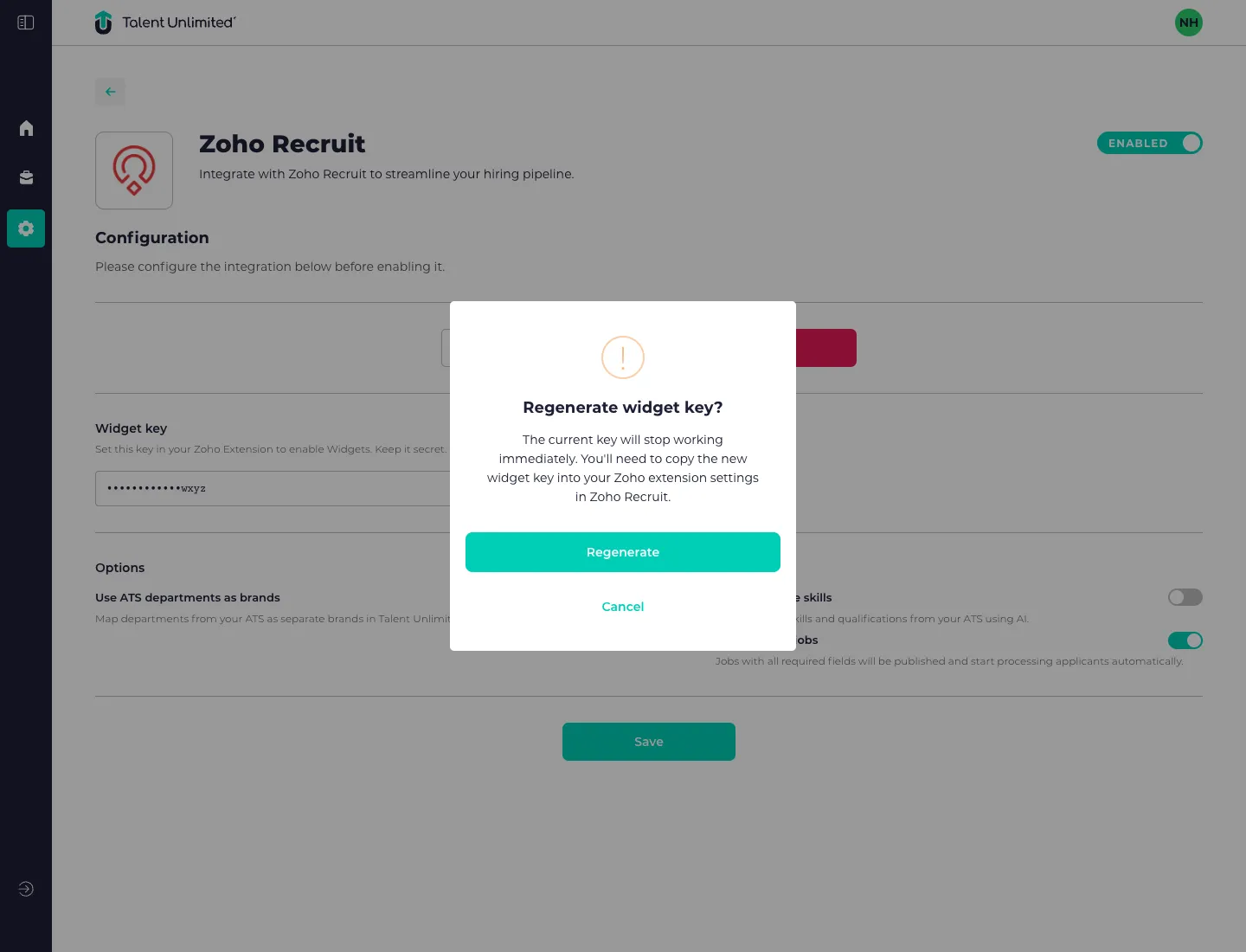
In the Widget key section, click Regenerate.
-
In the Regenerate widget key? dialog, click Regenerate. You see Widget key regenerated.
-
Click Copy to copy the new key.
-
In your Zoho extension settings in Zoho Recruit, replace the Webhook Secret with the new key. Until you do, the extension cannot show results.
Troubleshooting
Section titled “Troubleshooting”Sign-in to Zoho fails
Section titled “Sign-in to Zoho fails”You probably picked the wrong region. Disconnect if needed, then connect again and choose the region that matches your Zoho sign-in address.
Zoho shows a permission error when I click Accept
Section titled “Zoho shows a permission error when I click Accept”Your Zoho user cannot grant all the permissions Talent Unlimited needs. Ask a Zoho Recruit administrator to connect instead.
Jobs sync, but no results appear in Zoho
Section titled “Jobs sync, but no results appear in Zoho”Check that the Talent Unlimited extension is installed and that the AI SmartScreens and AI Interviews modules are in Zoho Recruit. Results are only saved when both modules are there. After you install the extension, it can take up to 15 minutes for results to start appearing.
Results show on the candidate but not on the application
Section titled “Results show on the candidate but not on the application”Set up the Applications module in Zoho Recruit.
The extension in Zoho does not show results
Section titled “The extension in Zoho does not show results”Check that the widget key in Zoho matches the key in Talent Unlimited. If you regenerated the key, paste the new one into Zoho.
Still stuck?
Section titled “Still stuck?”Email support@talentunlimited.io.
Disconnect Zoho Recruit
Section titled “Disconnect Zoho Recruit”-
Go to Settings, then Integrations, then Zoho Recruit.
-
Click Added.
-
Click Disconnect.
-
In the Disconnect Zoho dialog, click Disconnect.
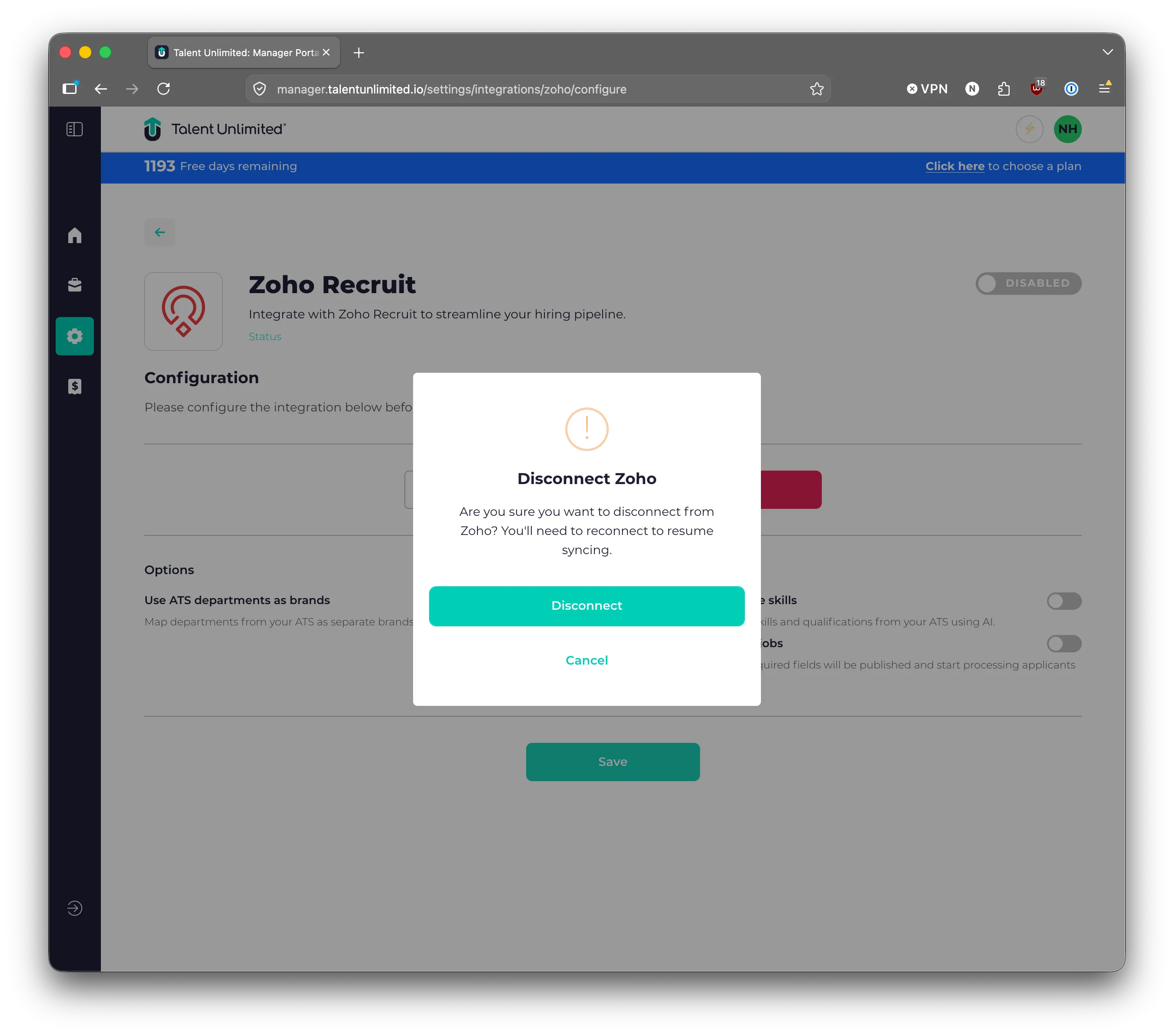
Syncing stops until you connect Zoho Recruit again.