

Troubleshooting Zoho Recruit
Fixes for common problems. For questions about how the integration works, see the FAQ. If nothing here helps, contact support.
Connecting Zoho Recruit
Section titled “Connecting Zoho Recruit”Sign-in to Zoho fails
Section titled “Sign-in to Zoho fails”You probably picked the wrong region. Disconnect if needed, then connect again and choose the region that matches your Zoho sign-in address.
Zoho shows a permission error when I click Accept
Section titled “Zoho shows a permission error when I click Accept”Your Zoho user cannot grant all the permissions Talent Unlimited needs. Ask a Zoho Recruit administrator to connect instead.
Results in Zoho
Section titled “Results in Zoho”Jobs sync, but no results appear in Zoho
Section titled “Jobs sync, but no results appear in Zoho”Check that the Talent Unlimited extension is installed and that the AI SmartScreens and AI Interviews modules are in Zoho Recruit. Results are only saved when both modules are there. After you install the extension, it can take up to 15 minutes for results to start appearing.
Results show on the candidate but not on the application
Section titled “Results show on the candidate but not on the application”Set up the Applications module in Zoho Recruit.
The extension in Zoho does not show results
Section titled “The extension in Zoho does not show results”Check that the widget key in Zoho matches the key in Talent Unlimited. If you regenerated the key, paste the new one into Zoho.
Buttons in Zoho show “Access denied”
Section titled “Buttons in Zoho show “Access denied””If a Talent Unlimited button in Zoho Recruit opens a page that says ERROR 401 and Access denied, the widget key in Zoho is wrong or missing. This happens if tu_widget_key is still set to replaceme.
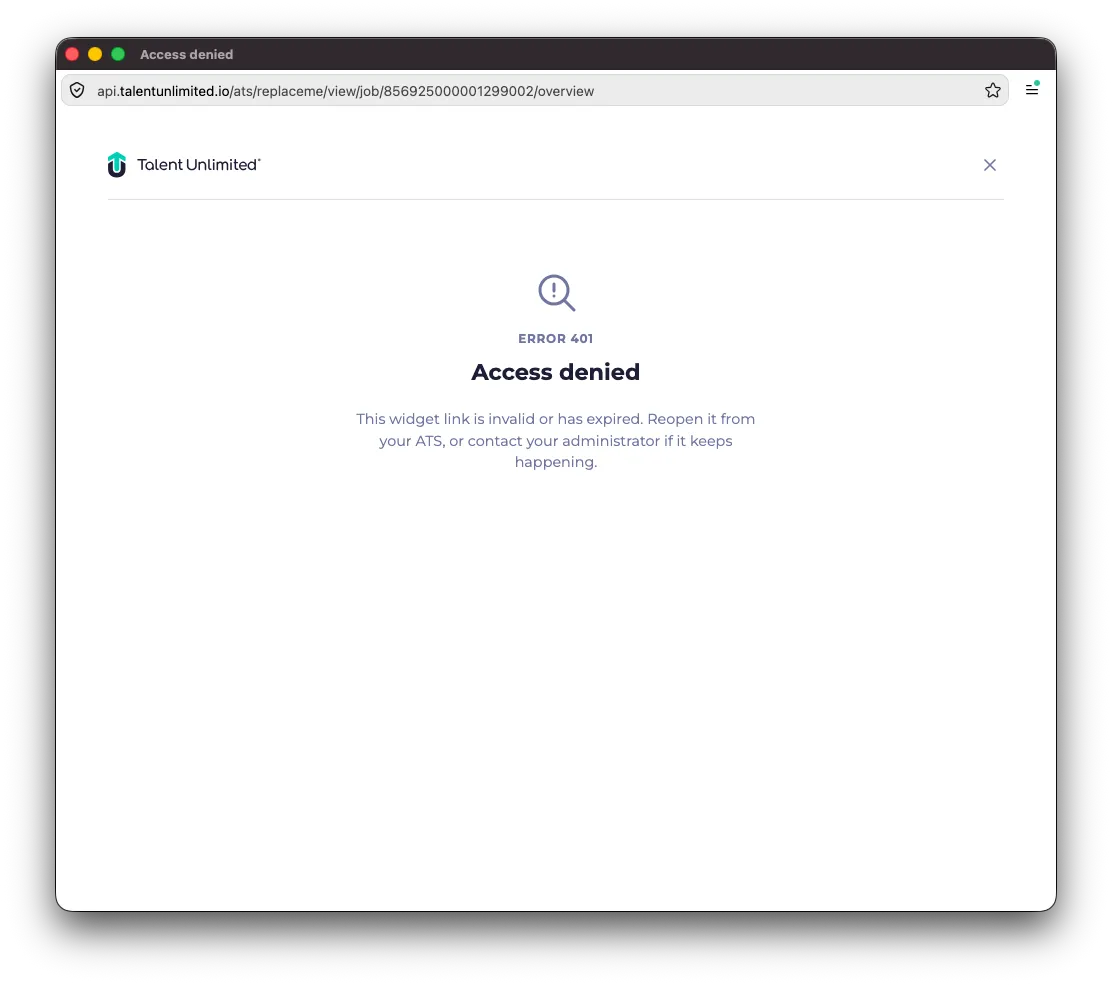
In Zoho Recruit, open the extension’s Extension Settings and set tu_widget_key to the Widget key from Talent Unlimited. See step 10 of the install.
Syncing
Section titled “Syncing”New applications take a while to be screened
Section titled “New applications take a while to be screened”Check that the Application Created workflow is in Setup, under Automation, then Workflow Rules, and that its status is switched on. Open its webhook and check that jobId uses Job Opening Id, not Job Opening ID. Job Opening ID does not include your organisation ID, so Talent Unlimited cannot tell which account the update is for.
Still stuck?
Section titled “Still stuck?”Email support@talentunlimited.io and tell us your workspace name and what you were trying to do.