

Set up the Applications module
The Applications module in Zoho Recruit keeps a separate record for each job a candidate applies to. The extension does not set it up for you. It is optional, but we strongly recommend it.
Watch the setup:
When it is set up, Talent Unlimited:
- Attaches the CV and the screening or interview report to each application, not only to the candidate.
- Links each application to its SmartScreen and interview results.
- Adds notes on the right application, even when a candidate applies to more than one job.
- Gives recruiters links and buttons on each application to open its results.
- Hears about new applications in Zoho straight away, so they are screened without delay.
Without it, Talent Unlimited saves results on the candidate record only.
Install the extension first. These steps use the AI SmartScreens and AI Interviews modules that it adds.
Open the Applications module settings
Section titled “Open the Applications module settings”-
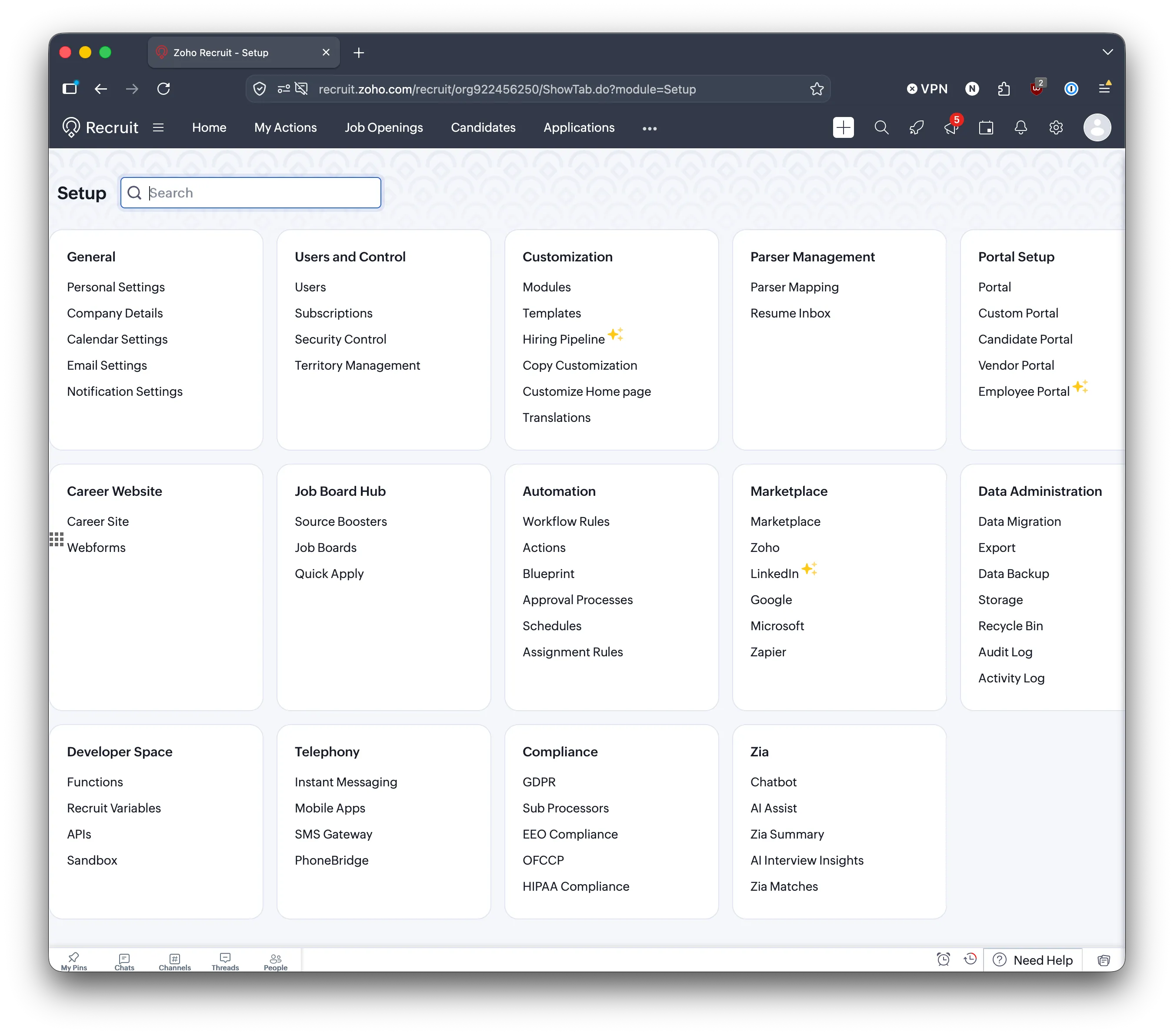
In Zoho Recruit, click the settings icon at the top right to open Setup.
-
Under Customization, click Modules.
-
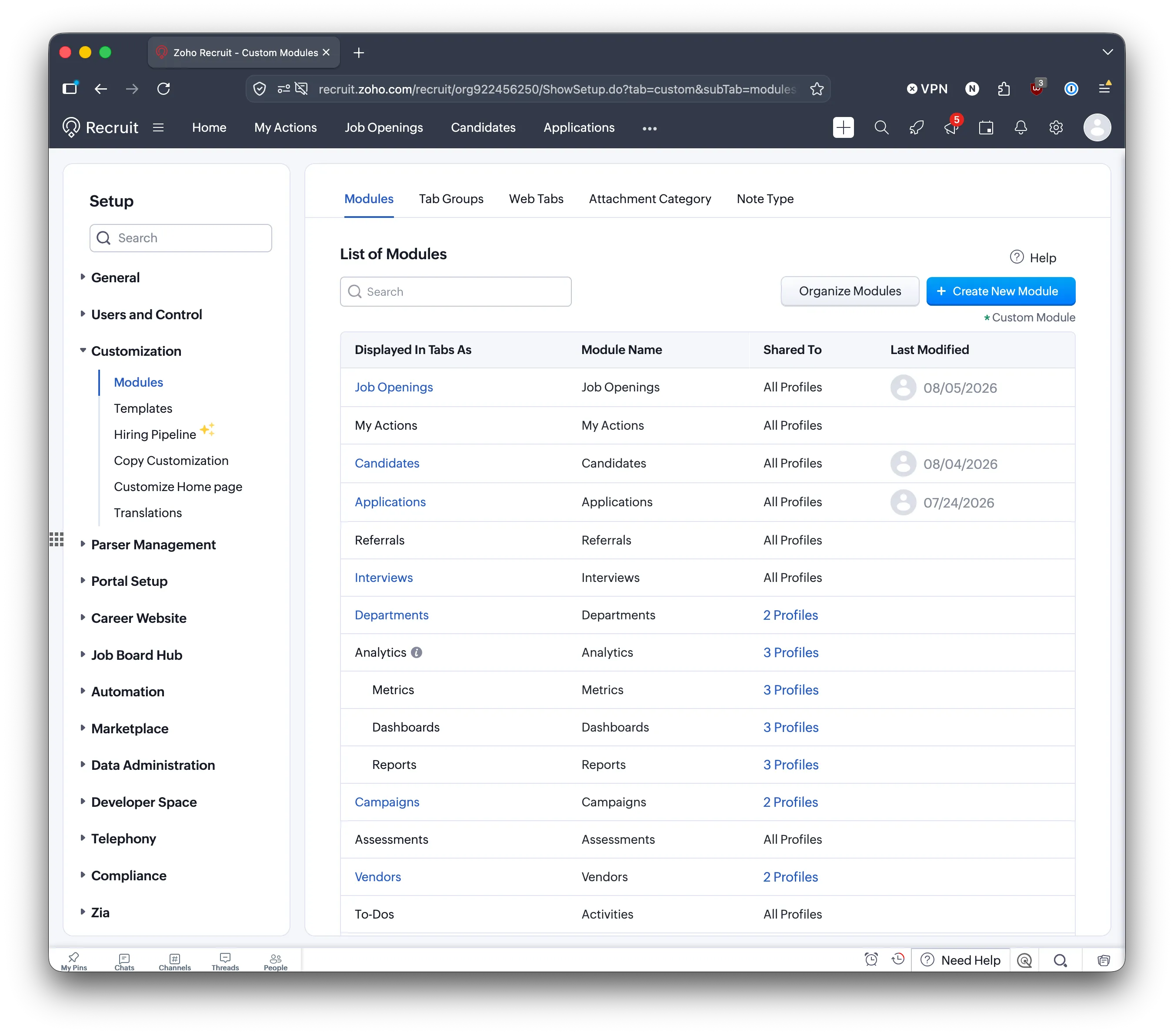
Click Applications. If you do not see Applications in the list, email support@talentunlimited.io.
Add the result fields
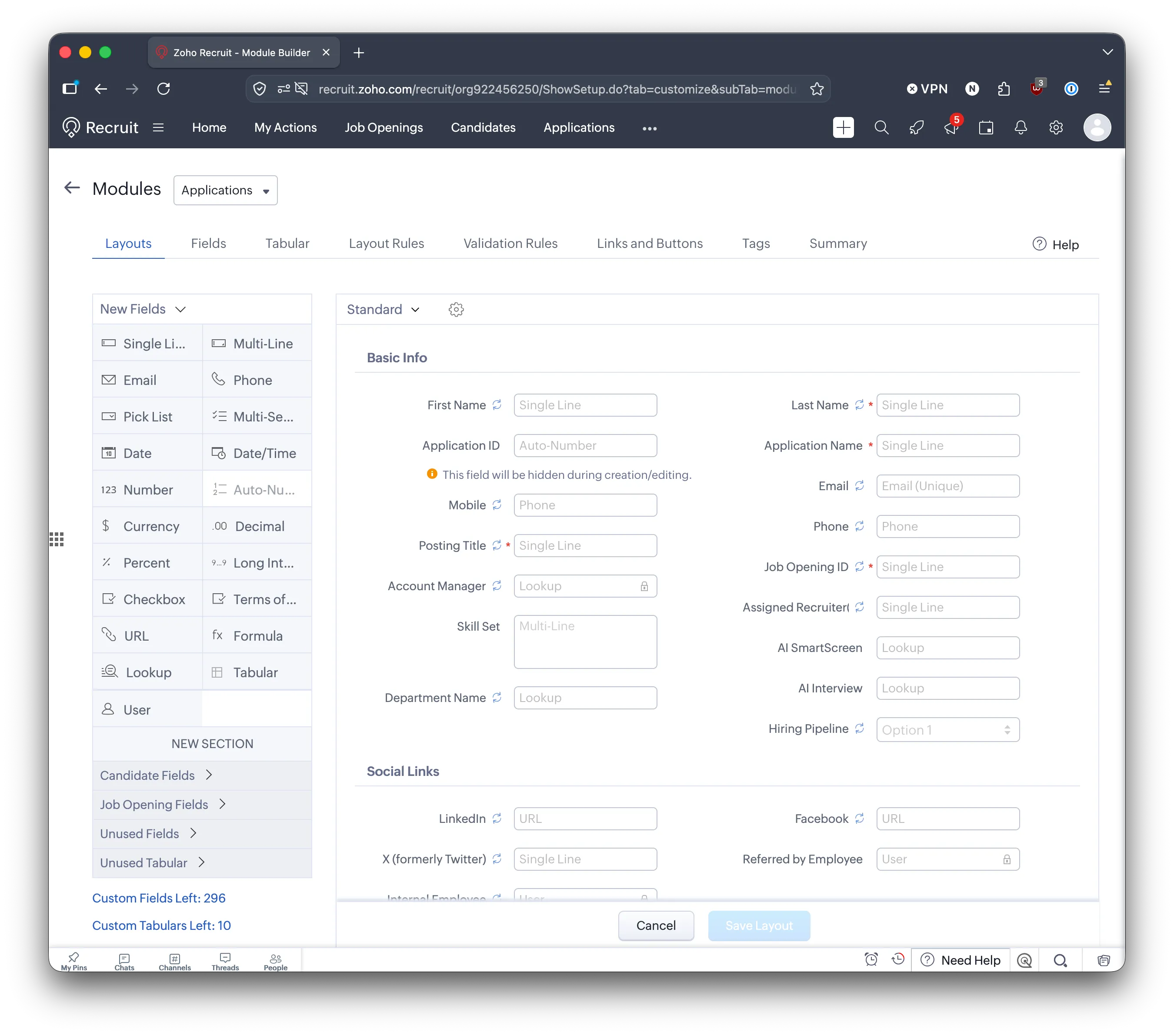
Section titled “Add the result fields”Add two lookup fields to the Applications layout.
-
On the Layouts tab, drag Lookup from New Fields onto the layout.
-
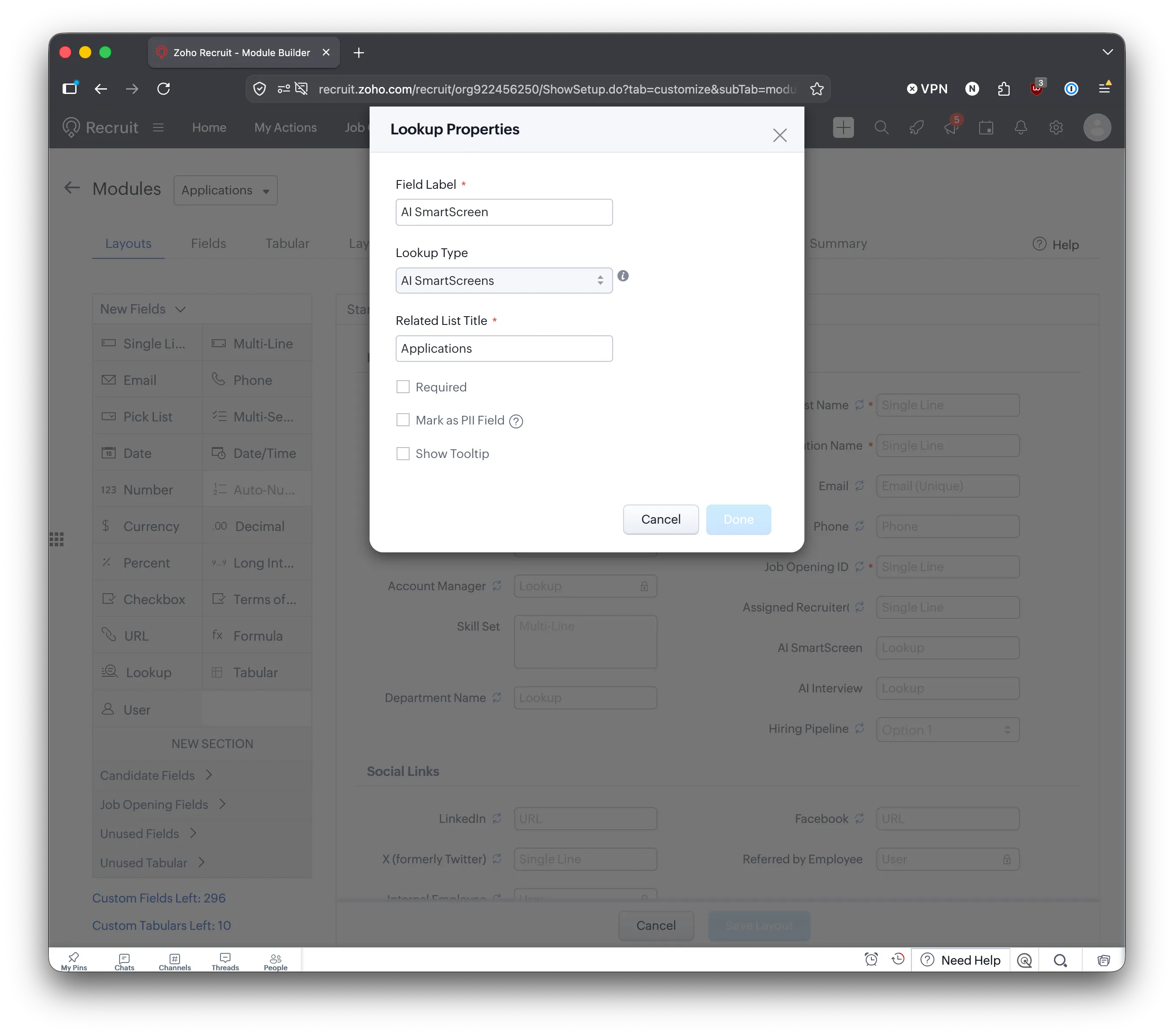
In Lookup Properties, enter:
- Field Label:
AI SmartScreen - Lookup Type: AI SmartScreens
- Related List Title:
Applications
- Field Label:
-
Click Done.
-
Drag another Lookup onto the layout and enter:
- Field Label:
AI Interview - Lookup Type: AI Interviews
- Related List Title:
Applications
- Field Label:
-
Click Done.
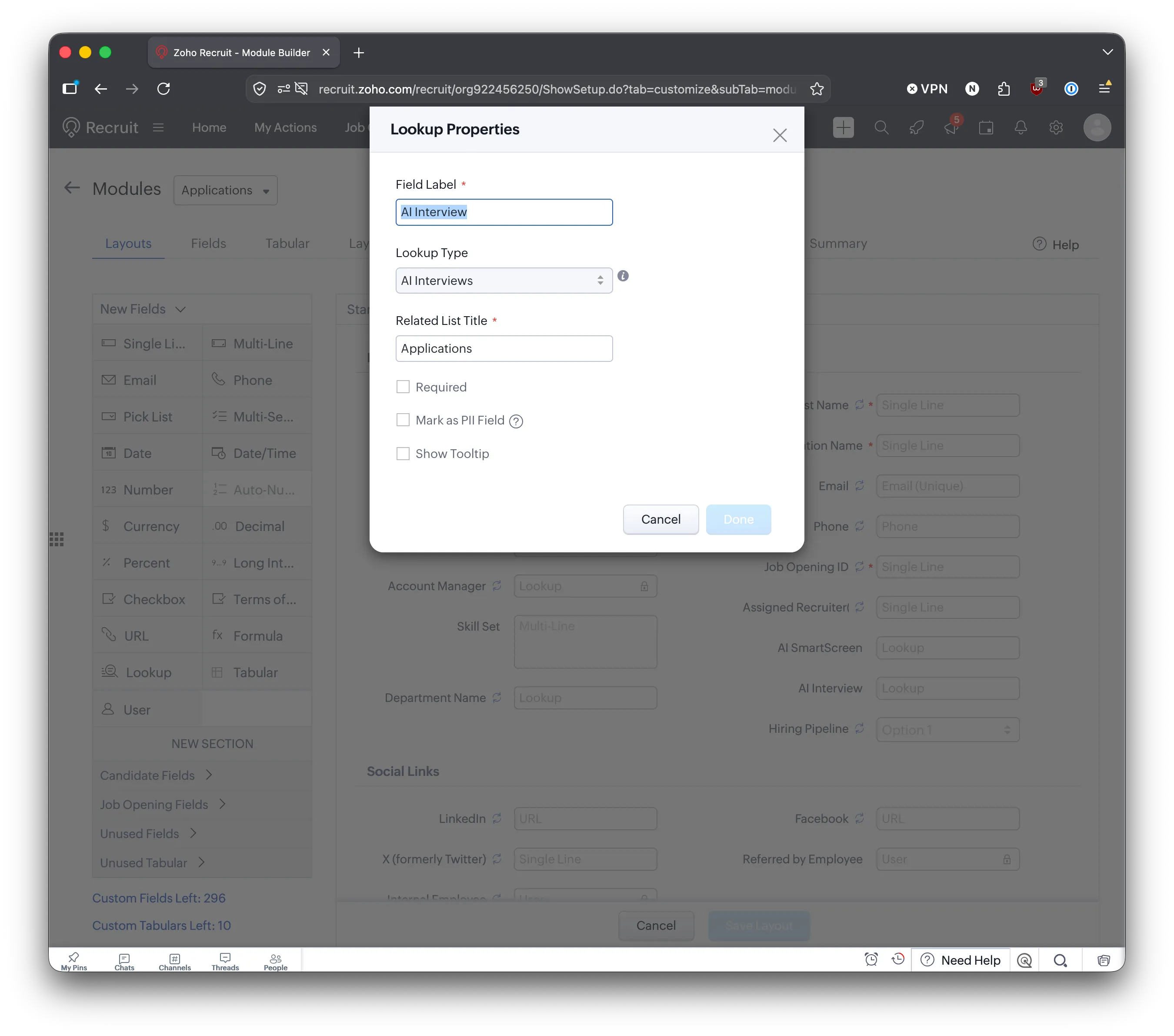
-
Click Save Layout.
Add links and buttons
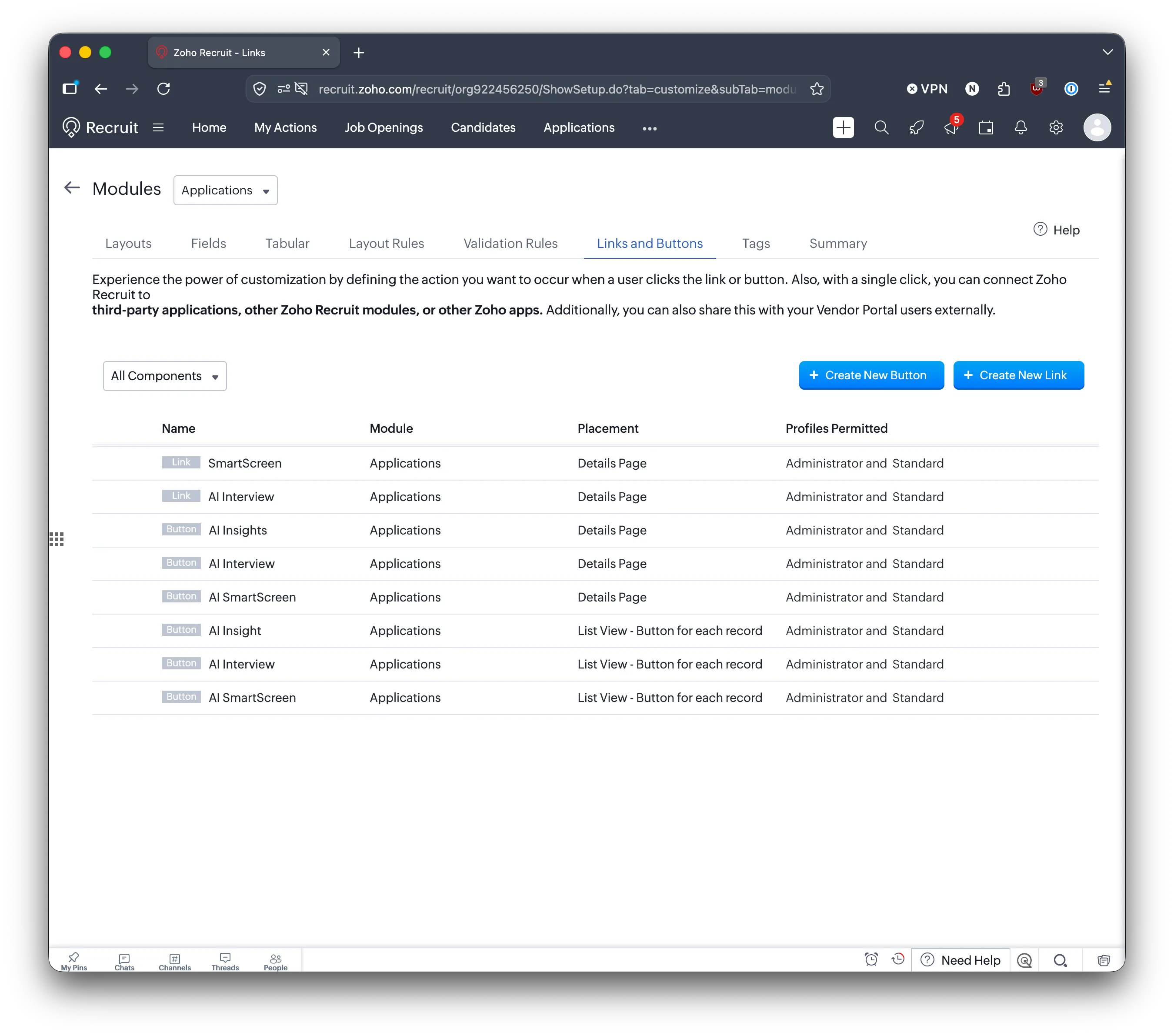
Section titled “Add links and buttons”Links and buttons let recruiters open Talent Unlimited results from an application in Zoho Recruit. Open the Links and Buttons tab. You add eight items in total: two links and six buttons.
| Type | Name | Placement | What it does |
|---|---|---|---|
| Link | SmartScreen | Details Page | Opens the application’s AI SmartScreen record |
| Link | AI Interview | Details Page | Opens the application’s AI Interview record |
| Button | AI Insights | Details Page | Shows a summary of the candidate: CV insights, SmartScreen and interview |
| Button | AI SmartScreen | Details Page | Shows how the candidate scored against the job requirements |
| Button | AI Interview | Details Page | Shows the AI interview summary and scores |
| Button | AI Insights | List View - Button for each record | Same as above, from each row of the Applications list |
| Button | AI SmartScreen | List View - Button for each record | Same as above, from each row of the Applications list |
| Button | AI Interview | List View - Button for each record | Same as above, from each row of the Applications list |
When you are done, the list looks like this:
Copy each URL exactly, including the parts in ${...}. Zoho fills these in for each application.
Add these two links. For each one:
- Click Create New Link.
- Enter the Label and the URL from the table.
- Under Set Permission, choose Administrator and Standard.
- Click Save.
| Label | URL |
|---|---|
| SmartScreen | https://api.talentunlimited.io/ats/redirect/zoho/application/${Applications.Application Id}/smartscreen |
| AI Interview | https://api.talentunlimited.io/ats/redirect/zoho/application/${Applications.Application Id}/interview |
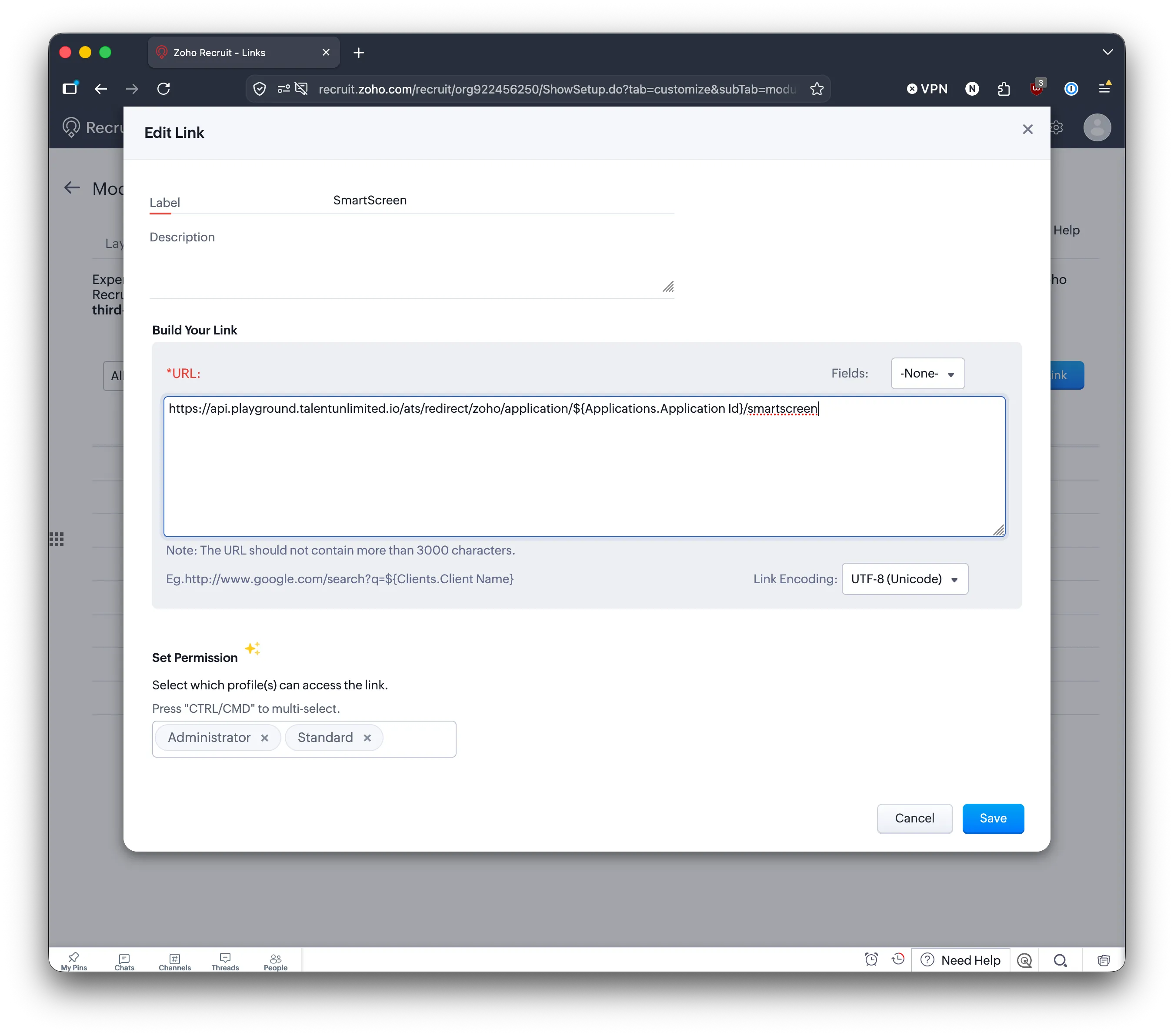
If an application has not been screened or interviewed yet, its link shows a “not found” page.
Buttons
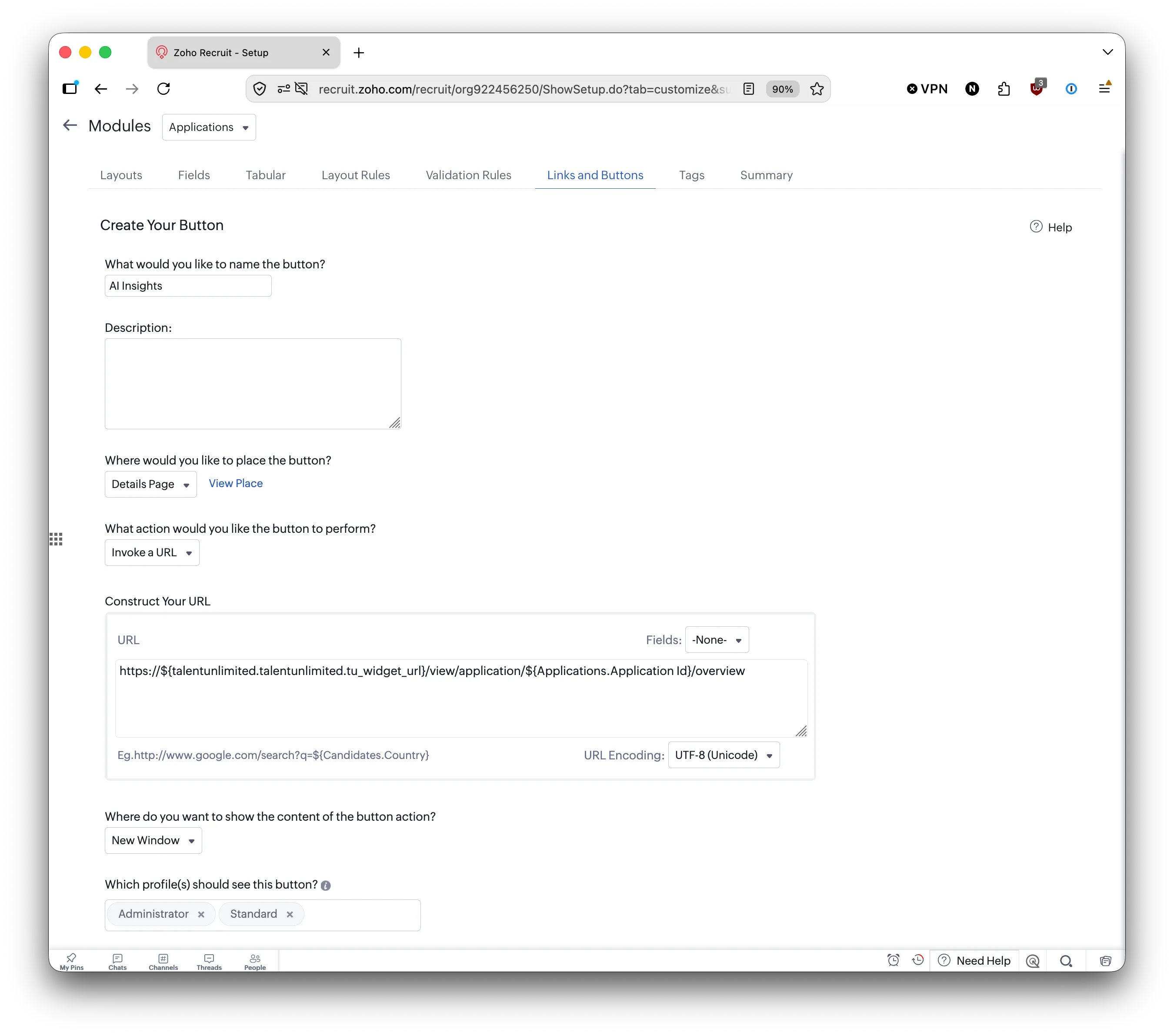
Section titled “Buttons”Add each of these three buttons twice: once on the Details Page, and once on List View - Button for each record. For each one:
- Click Create New Button.
- Enter the name from the table.
- Under Where would you like to place the button?, choose Details Page the first time, and List View - Button for each record the second time.
- Under What action would you like the button to perform?, choose Invoke a URL.
- Enter the URL from the table.
- Under Where do you want to show the content of the button action?, choose New Window.
- Under Which profile(s) should see this button?, choose Administrator and Standard.
- Save the button.
| Name | URL |
|---|---|
| AI Insights | https://${talentunlimited.talentunlimited.tu_base_url}/ats/${talentunlimited.talentunlimited.tu_widget_key}/view/application/${Applications.Application Id}/overview |
| AI SmartScreen | https://${talentunlimited.talentunlimited.tu_base_url}/ats/${talentunlimited.talentunlimited.tu_widget_key}/view/application/${Applications.Application Id}/smartscreen |
| AI Interview | https://${talentunlimited.talentunlimited.tu_base_url}/ats/${talentunlimited.talentunlimited.tu_widget_key}/view/application/${Applications.Application Id}/interview |
Add the Application Created workflow
Section titled “Add the Application Created workflow”This workflow tells Talent Unlimited as soon as a new application is created in Zoho Recruit, so it can be pulled in and screened straight away.
-
In Setup, under Automation, click Workflow Rules.
-
Click Create Rule.
-
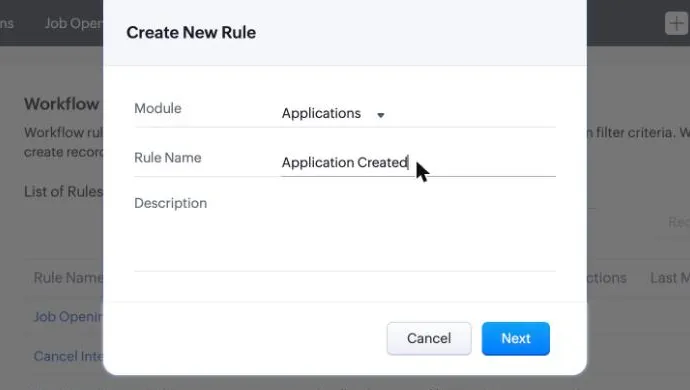
In Create New Rule, enter:
- Module: Applications
- Rule Name:
Application Created
-
Click Next.
-
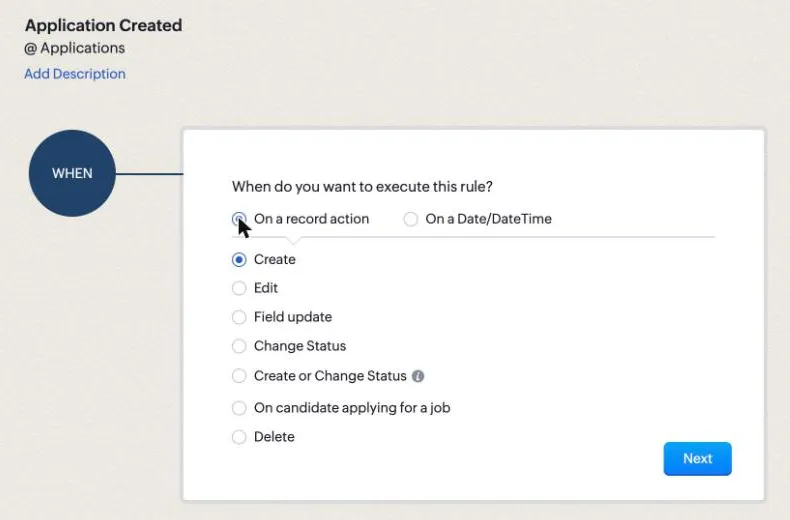
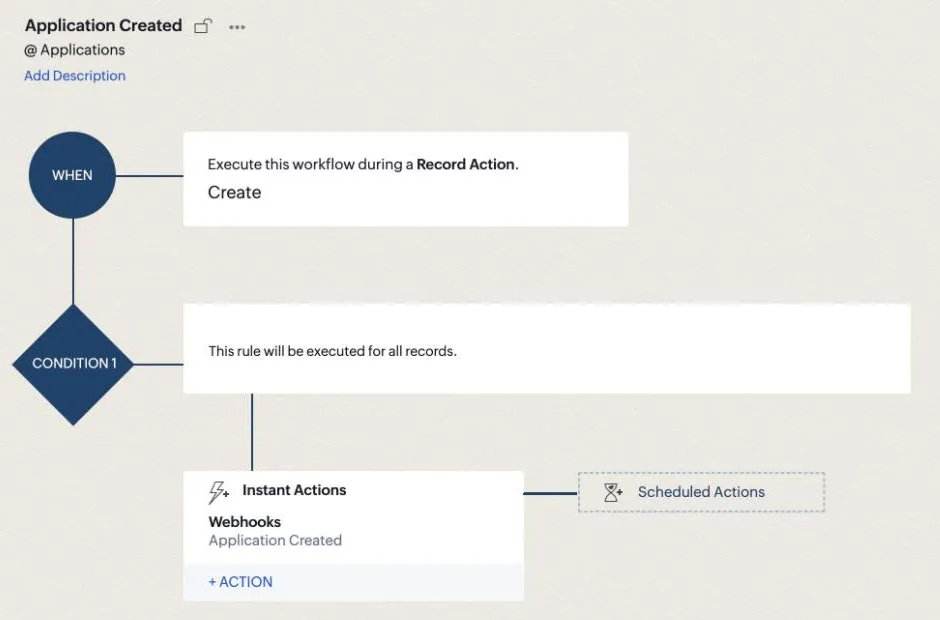
Under When do you want to execute this rule?, choose On a record action, then Create. Click Next.
-
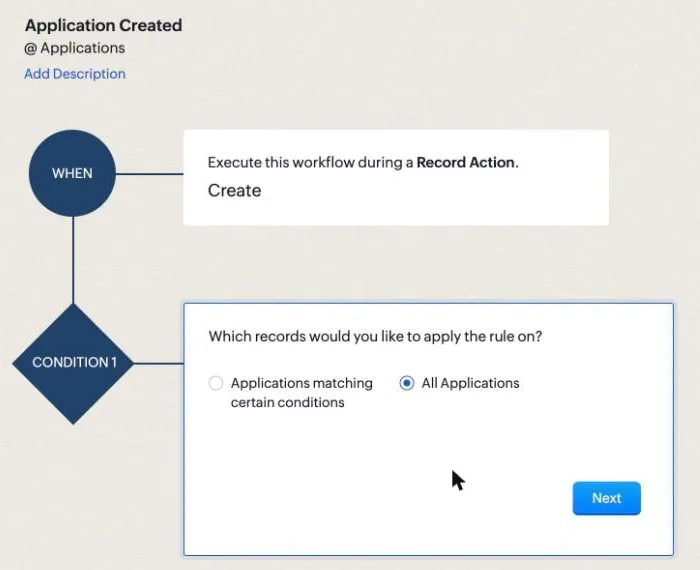
Under Which records would you like to apply the rule on?, choose All Applications. Click Next.
-
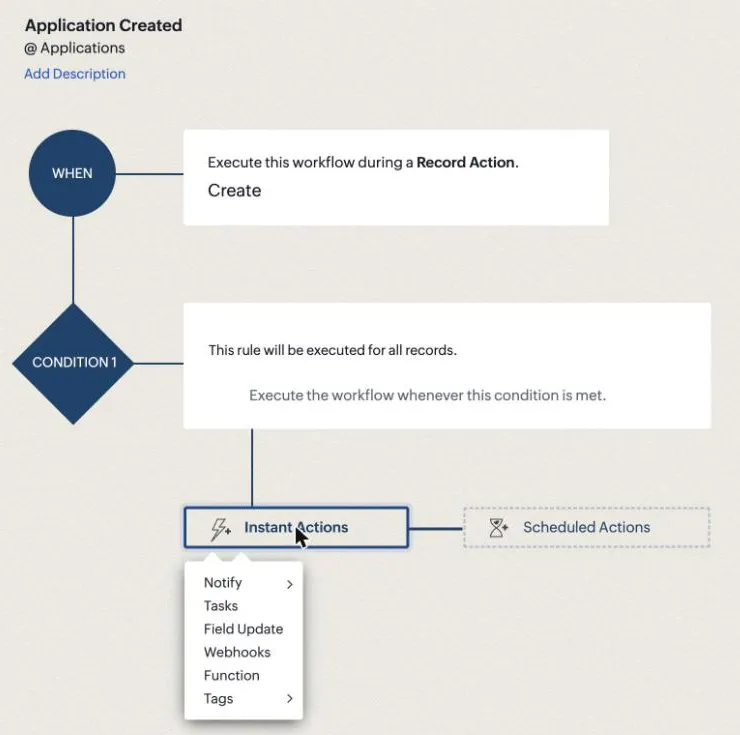
Click Instant Actions, then Webhooks.
-
Click New Webhook, then enter:
- Name:
Application Created - URL to Notify:
https://api.talentunlimited.io/ats/webhook/zoho - Method: POST
- Authorization Type: General
- Name:
-
Under Append Entity Parameters, in Parameters in Standard Format, add one parameter:
- Parameter Name:
jobId - Parameter Value: Job Openings, then Job Opening Id
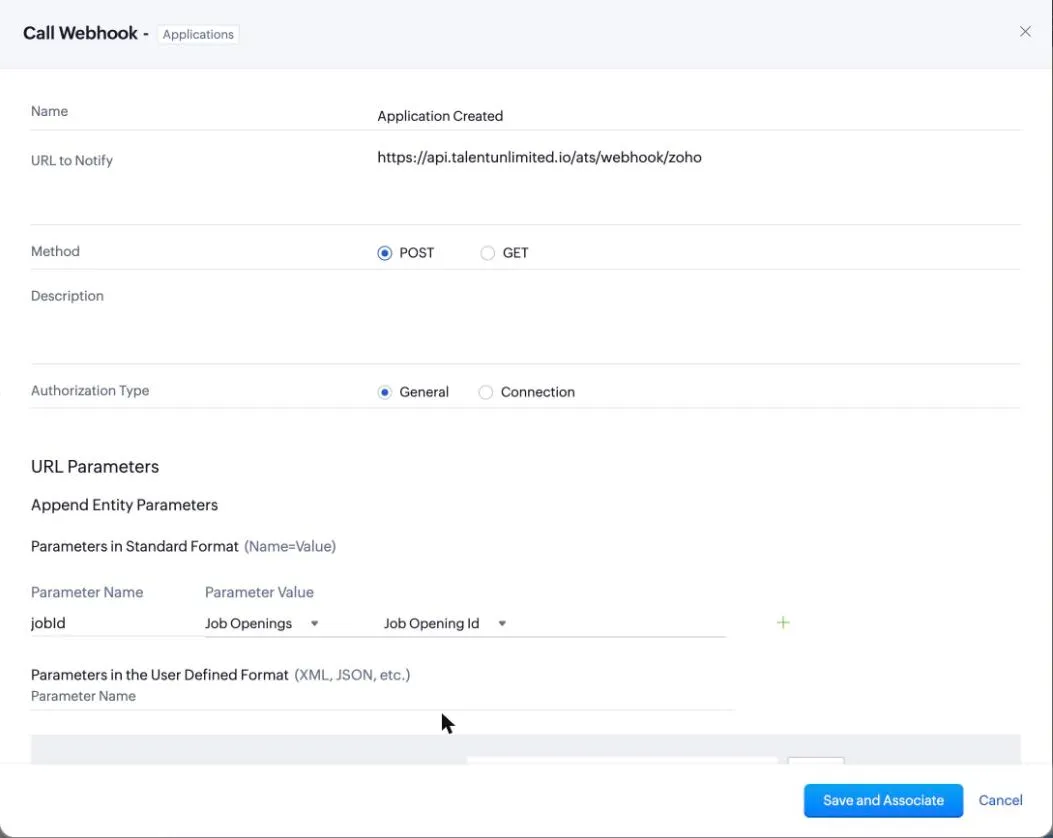
Leave the other parameter sections empty.
- Parameter Name:
-
Click Save and Associate.
-
Click Save to save the rule.
When you are done, the rule looks like this, and Application Created shows in the list of workflow rules with its status switched on.
Next steps
Section titled “Next steps”See Using Talent Unlimited in Zoho Recruit to find your results and act on them.