

Using Talent Unlimited in Zoho Recruit
Once Zoho Recruit is connected and set up, Talent Unlimited works alongside your normal Zoho workflow. This page explains what happens automatically, where to find the results in Zoho, and what you can do from there.
What happens automatically
Section titled “What happens automatically”- A job opening goes live in Zoho, and Talent Unlimited imports it.
- You turn on AI screening for the job, or Talent Unlimited does it for you.
- Talent Unlimited pulls in the job’s applicants and screens each CV with SmartScreen.
- Candidates who pass are invited to an AI interview by email.
- The results go back to Zoho: as notes on each application, as AI SmartScreens and AI Interviews records, and as a candidate report.
- You review the results in Zoho, and shortlist, reject or hire. Talent Unlimited and Zoho stay in step.
Which jobs sync
Section titled “Which jobs sync”Talent Unlimited imports job openings whose status in Zoho is In-progress. Jobs with any other status are not imported.
When a job’s status in Zoho changes to Filled, Closed or Cancelled, the job is closed in Talent Unlimited. If you delete a job in Zoho, it is closed in Talent Unlimited and its title starts with [DELETED IN ZOHO].
Jobs you publish in Talent Unlimited are also created in Zoho, as In-progress job openings.
Turn on AI screening for a job
Section titled “Turn on AI screening for a job”Imported jobs start as drafts. Talent Unlimited does not screen anyone until the job is published.
To publish a job from Zoho, open the job opening and click Enable AI Insight. Check the job details Talent Unlimited needs, such as seniority, experience, the pass mark for SmartScreen and the interview questions, then publish.
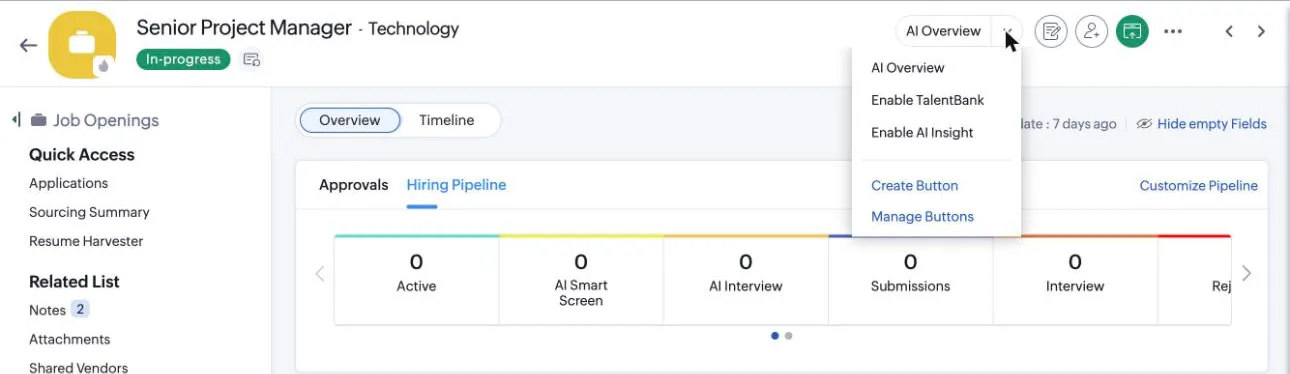
To publish jobs without this step, turn on Auto-generate skills and Auto-publish jobs in the integration’s options. Talent Unlimited then fills in any missing skills and details with AI, and publishes each job that has everything it needs.
See how a job is going
Section titled “See how a job is going”On a job opening, click AI Overview. It shows how many candidates applied, were screened, passed and were interviewed, and the top 10 candidates. Click View all candidates to see everyone, with filters and search.
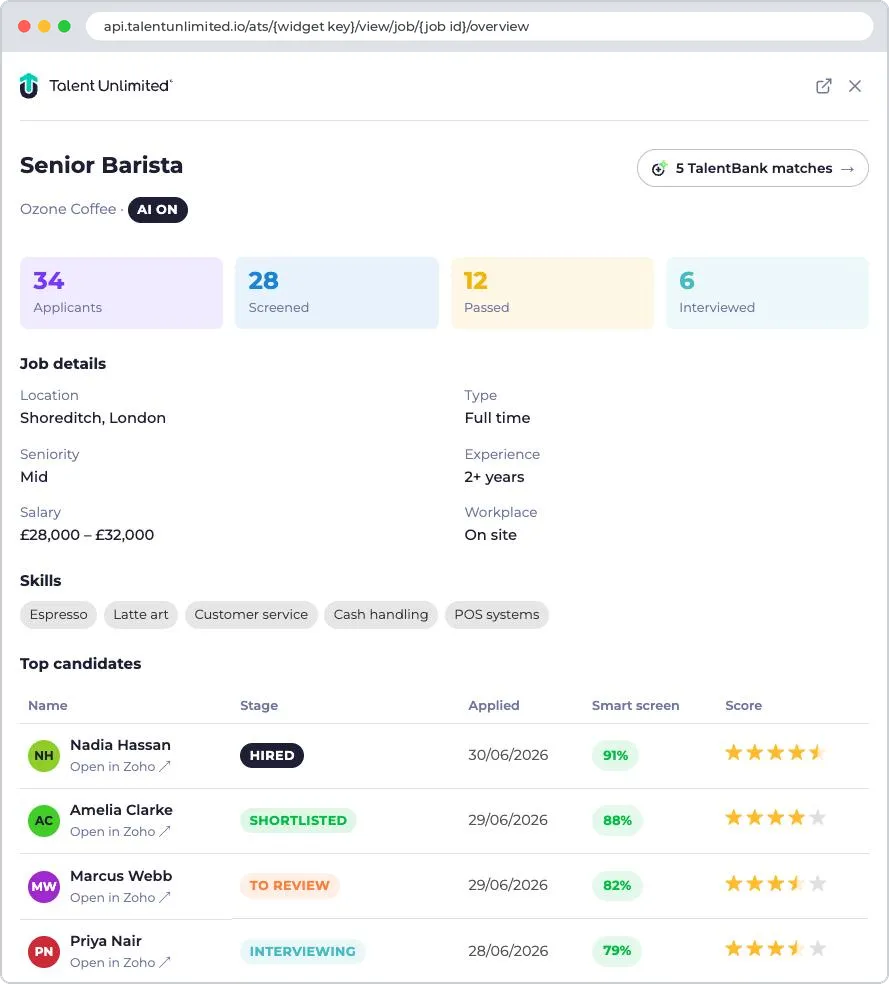
See Job overview and Job candidates for everything these views show.
Job notes
Section titled “Job notes”Talent Unlimited adds a note to the job opening in Zoho when the job:
- Becomes available in Talent Unlimited.
- Goes live, and smart screening starts.
- Is paused or closed.
- Finishes a TalentBank search.
Each note links to the job in Talent Unlimited.
Applications
Section titled “Applications”How applicants reach Talent Unlimited
Section titled “How applicants reach Talent Unlimited”Talent Unlimited pulls in the applications for every live job. Each candidate’s CV comes from their attachments in Zoho: the one whose category, type or file name says “resume”.
New applications reach Talent Unlimited straight away through the Application Created workflow and the workflows the extension adds. As a backup, Talent Unlimited also checks every job in full every 2 hours.
Applications that are already rejected in Zoho are not imported.
Candidates who apply through Talent Unlimited
Section titled “Candidates who apply through Talent Unlimited”When a candidate applies through a Talent Unlimited application link, Talent Unlimited adds them to Zoho. It creates the candidate, or uses an existing one with the same email address, attaches their CV under Resume, and links them to the job opening.
Screening and AI interviews
Section titled “Screening and AI interviews”Talent Unlimited screens every applicant’s CV against the job with SmartScreen. Candidates who pass are invited to an AI interview by email, if the job has auto-invite turned on.
Talent Unlimited does not invite a candidate whose application stage in Zoho has moved past Applied or To Review. If you have already moved someone on in Zoho, they are not invited.
Candidates who don’t finish their interview by the deadline are rejected automatically.
Notes on each application
Section titled “Notes on each application”As an application moves through Talent Unlimited, a note is added to it in Zoho. Each milestone adds one note:
| Milestone | What the note says |
|---|---|
| Imported | The candidate is in Talent Unlimited |
| Passed SmartScreen | The candidate passed, with a summary of their SmartScreen |
| Needs review | The SmartScreen score is borderline or low, so a recruiter should check it |
| Invited to interview | The candidate has been invited to an AI interview |
| Interview started | The candidate has started their interview |
| Interview completed | The interview summary, overall score and criteria breakdown |
| Shortlisted | The candidate was shortlisted |
| Rejected | The candidate was rejected |
| Unresponsive | The candidate didn’t finish their interview in time, and was rejected |
Notes about results include a link to the candidate in Talent Unlimited.
View results
Section titled “View results”From the Applications list
Section titled “From the Applications list”In Applications, each row has an AI Insights button. Click the arrow next to it to choose AI Insights, AI SmartScreen or AI Interview.
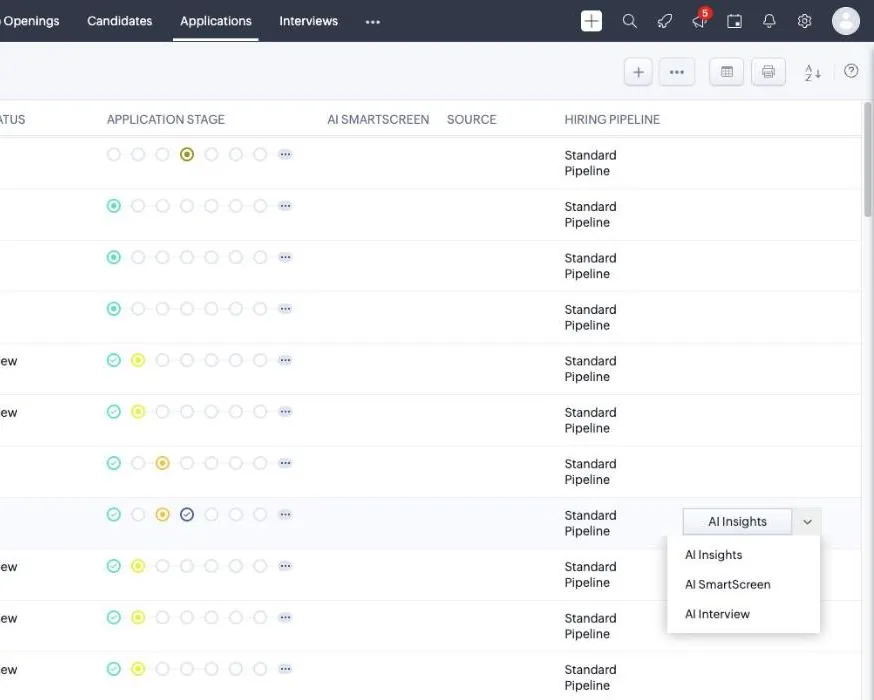
On an application
Section titled “On an application”Open an application. Use the AI Insights button at the top, or the SmartScreen and AI Interview links under Links.
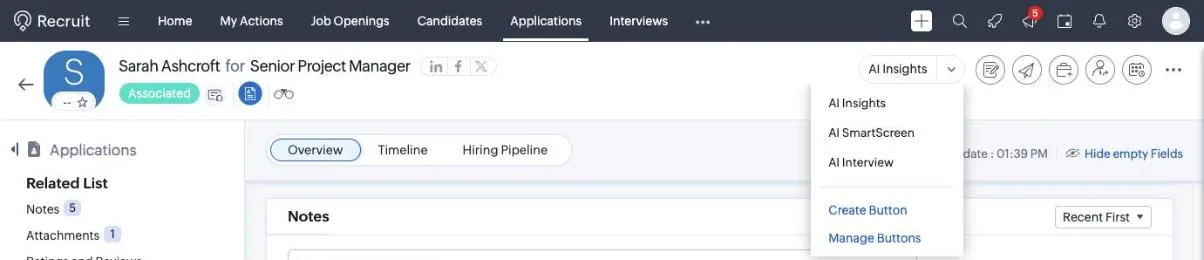
| Button or link | What it shows |
|---|---|
| AI Insights | The candidate at a glance: SmartScreen, interview and CV insights |
| AI SmartScreen | How the candidate scored against each job requirement |
| AI Interview | The interview scores, analysis and transcript |
| SmartScreen link | The application’s record in AI SmartScreens |
| AI Interview link | The application’s record in AI Interviews |
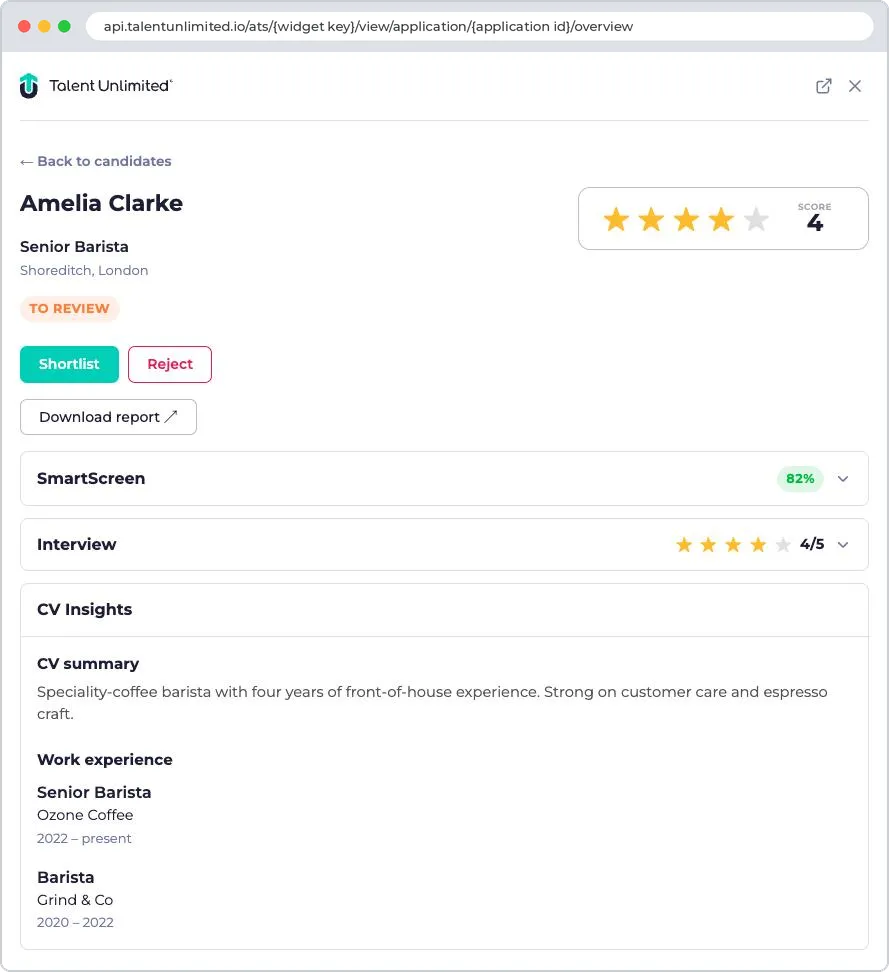
These buttons and links come from setting up the Applications module.
AI SmartScreens records
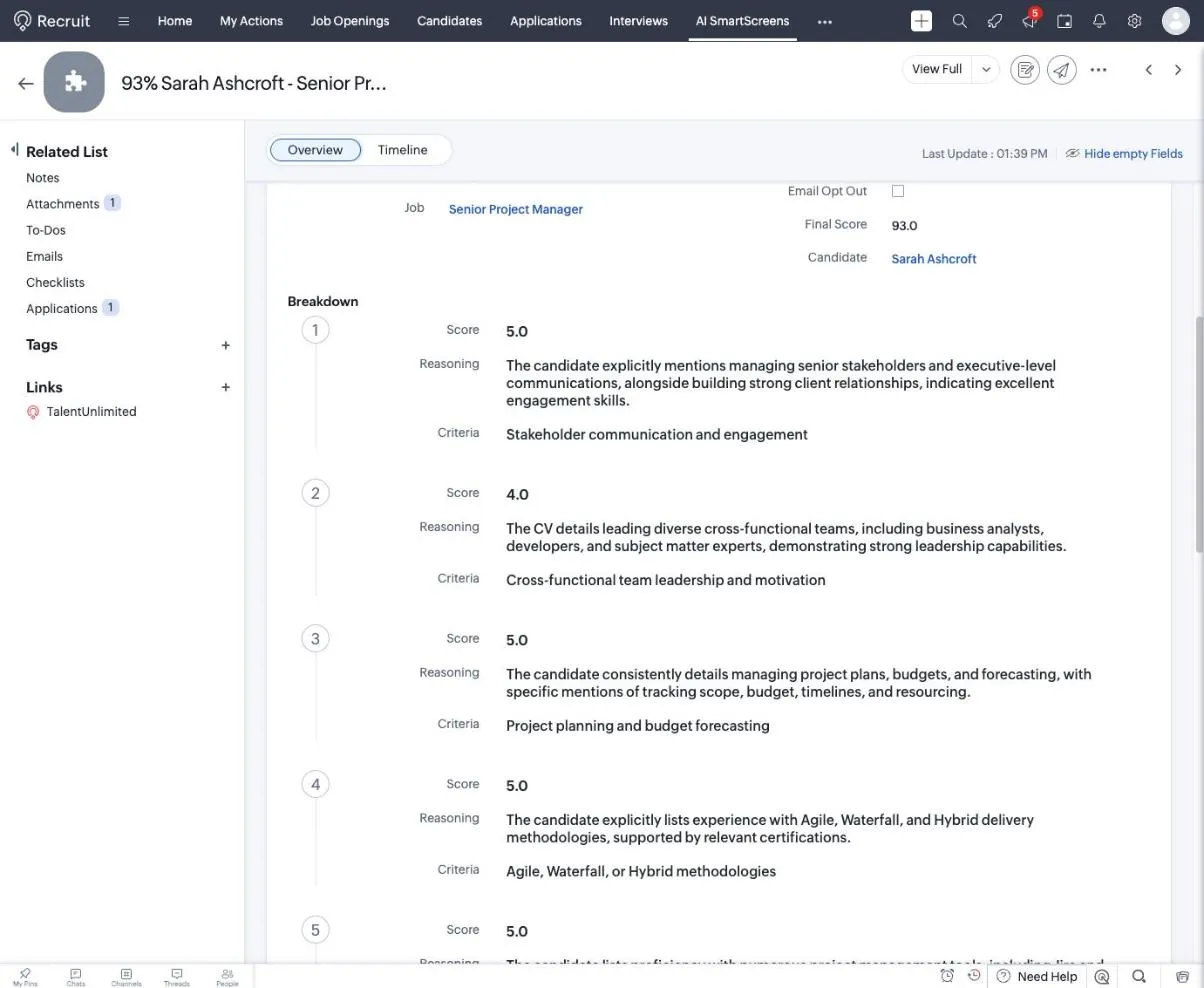
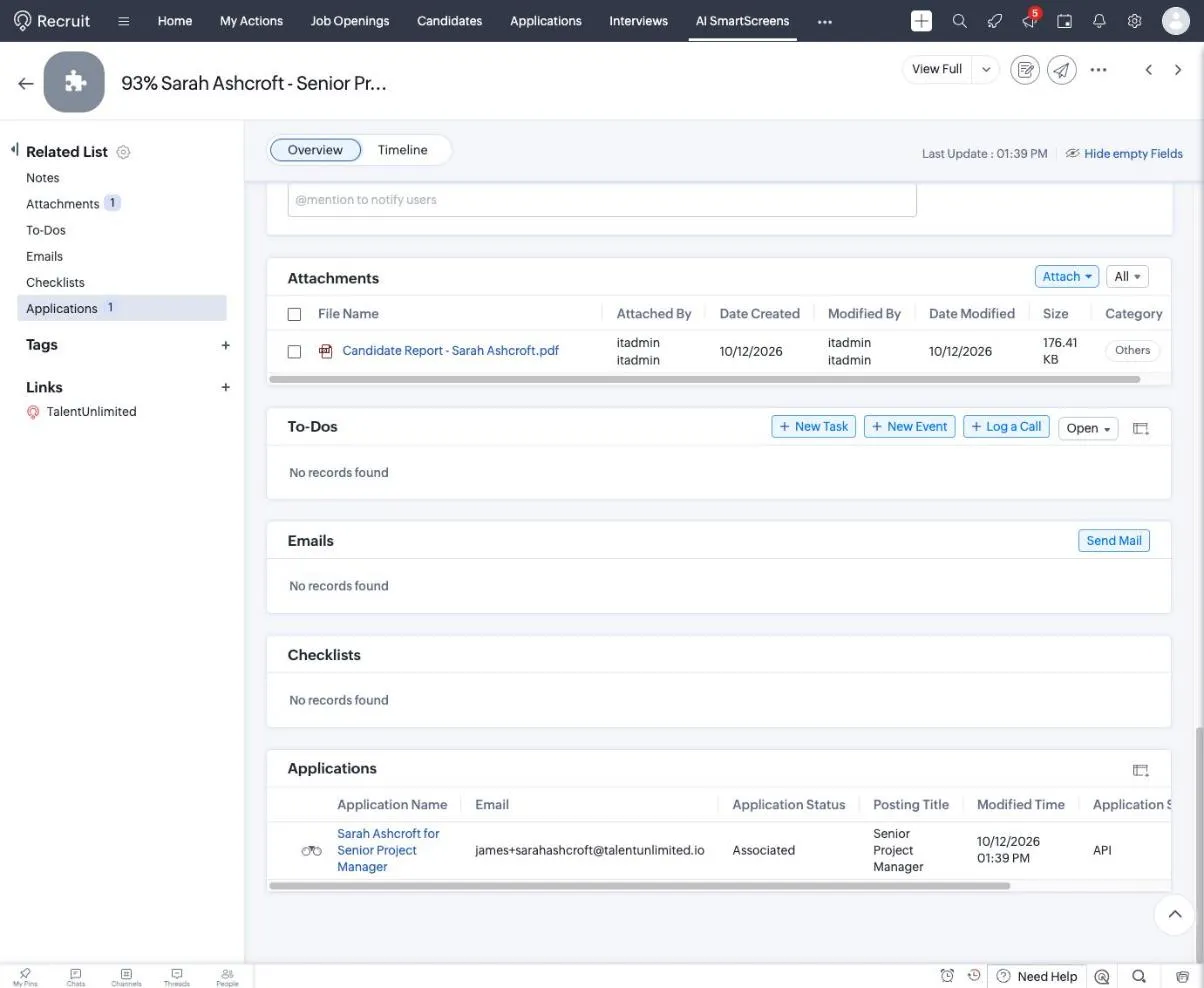
Section titled “AI SmartScreens records”Each SmartScreen is saved as a record in the AI SmartScreens module, named with the score, candidate and job. For example, 93% Sarah Ashcroft - Senior Project Manager.
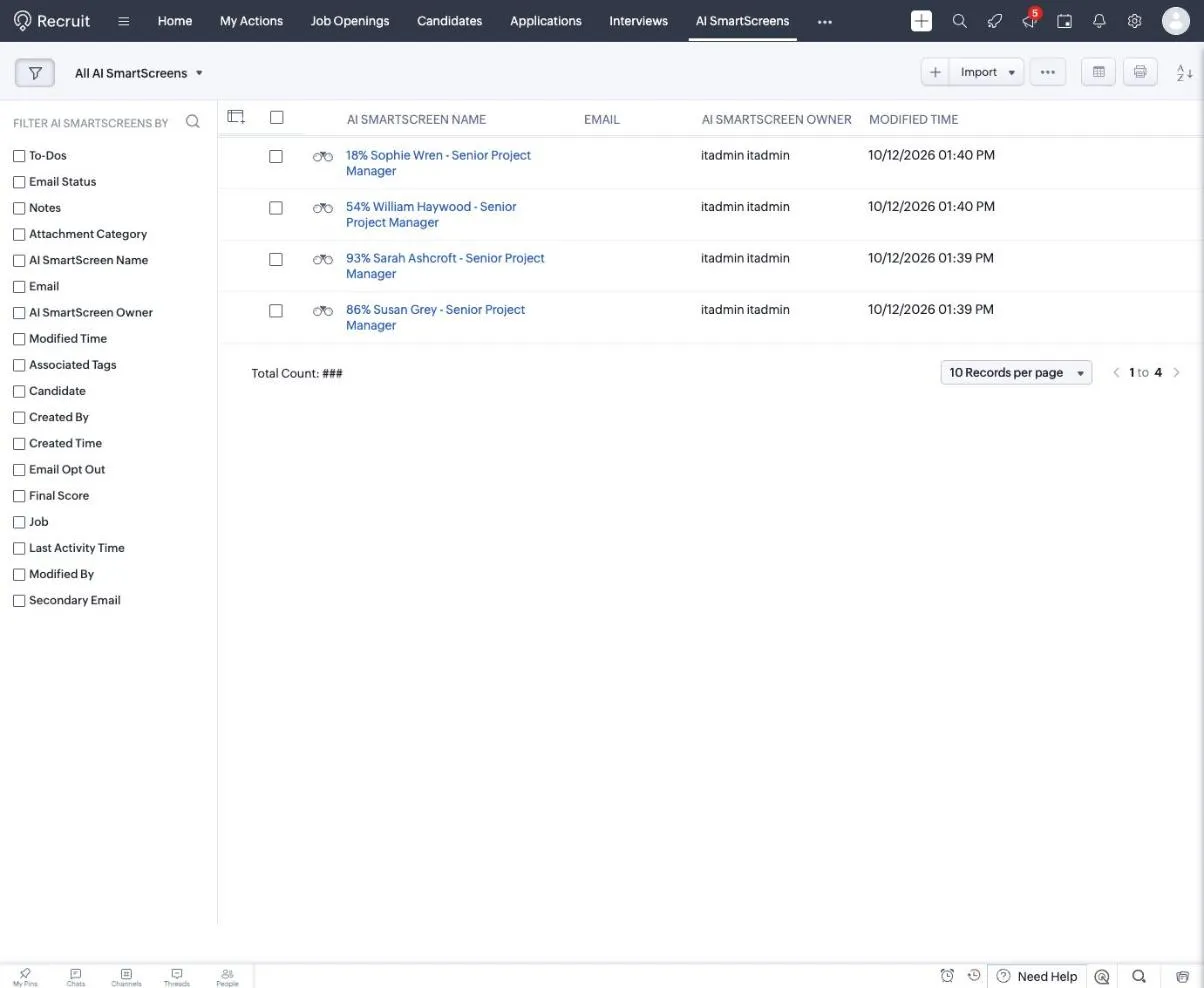
Open a record to see the final score and a Breakdown: a score and reasoning for each skill, plus experience and continuity.
AI Interviews records
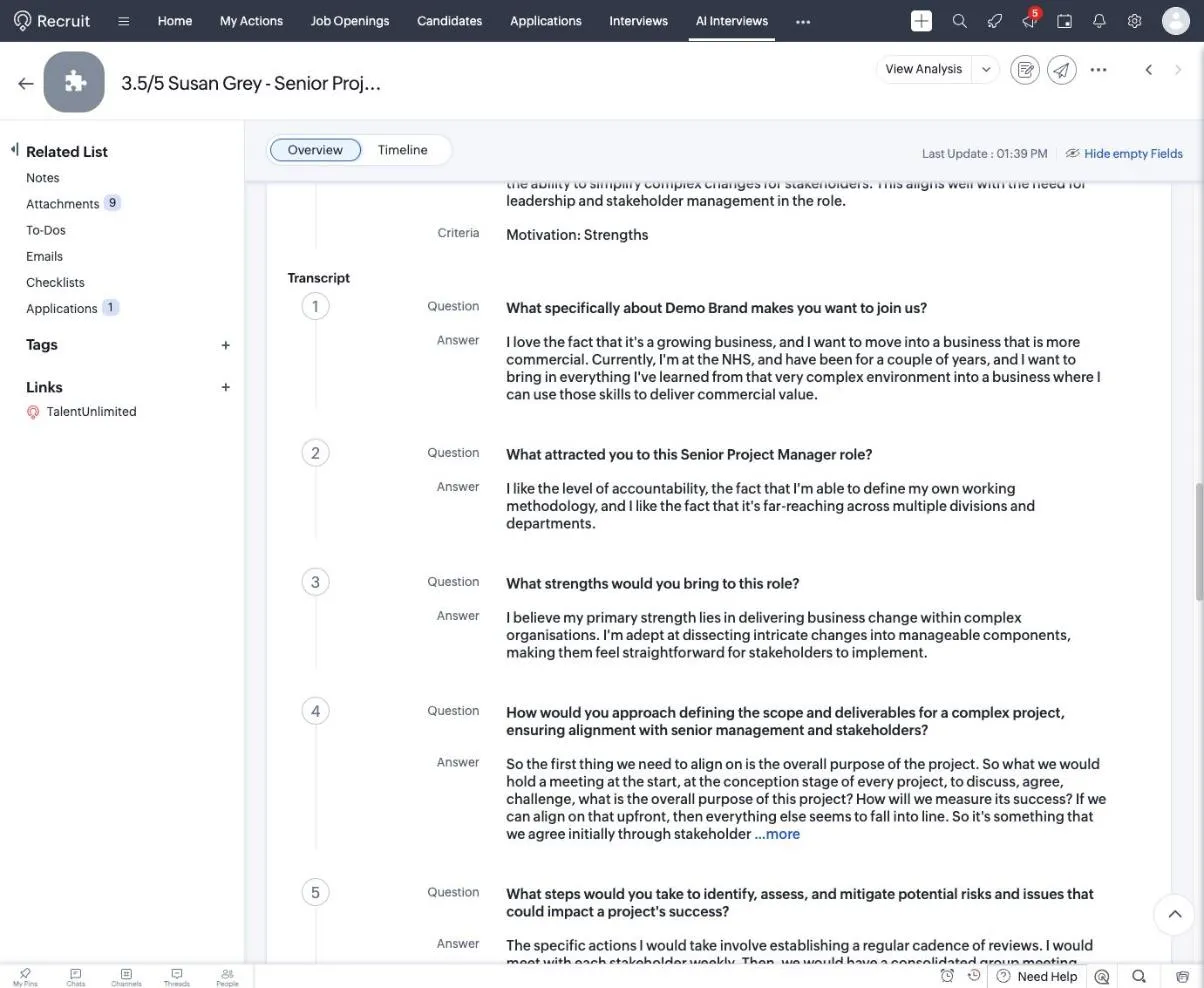
Section titled “AI Interviews records”Each AI interview is saved in the AI Interviews module, named with the score out of 5. A record has the overall score, Interview Results with a score and analysis for each criterion, and the Transcript of each question and answer. The candidate’s audio answers are attached.
Candidate report
Section titled “Candidate report”Talent Unlimited attaches a candidate report, as a PDF, to the candidate, the application and the AI SmartScreens record. You find it under Attachments, in the Others category. When the results change, the report is replaced with a new one.
Shortlist, reject or hire
Section titled “Shortlist, reject or hire”The AI Insights, AI SmartScreen and AI Interview views have buttons to act on the application, such as Shortlist, Reject, Move to interview and Hire. The buttons shown depend on where the application is.
When you click one, the change is saved in Talent Unlimited and a note is added to the application in Zoho.
Change the application status in Zoho too
Section titled “Change the application status in Zoho too”Talent Unlimited can also change the Application Status in Zoho at each milestone. For example, it can set the status to Shortlisted when you shortlist someone, or to a status of your choice when a candidate passes SmartScreen. This is off until it is set up. To set it up, email support@talentunlimited.io and tell us which Zoho status to use for each milestone.
Changes you make in Zoho
Section titled “Changes you make in Zoho”You can keep working in Zoho as normal.
- If you reject an application in Zoho, it is rejected in Talent Unlimited too. Statuses that mean the same thing, such as declined, junk, unqualified, archived or withdrawn, count as rejected.
- If you hire a candidate in Zoho, they are marked as hired in Talent Unlimited.
- Other status changes don’t change the application in Talent Unlimited. But once an application has moved past Applied or To Review, Talent Unlimited won’t invite the candidate to an interview.
TalentBank
Section titled “TalentBank”TalentBank finds candidates who suit a job from people who have applied to you before. Talent Unlimited checks each match with SmartScreen, and only keeps the ones who pass the job’s pass mark.
Turn on TalentBank for a job
Section titled “Turn on TalentBank for a job”On a job opening, click the arrow next to AI Overview, then click Enable TalentBank. The job must already be live in Talent Unlimited.
Review and contact matches
Section titled “Review and contact matches”Matches appear in the TalentBank Matches module in Zoho, and in the job’s TalentBank related list. Each match has a SmartScreen score, the reason the candidate suits the job, a summary and a SmartScreen breakdown. If the candidate is already in Zoho, the match links to them.
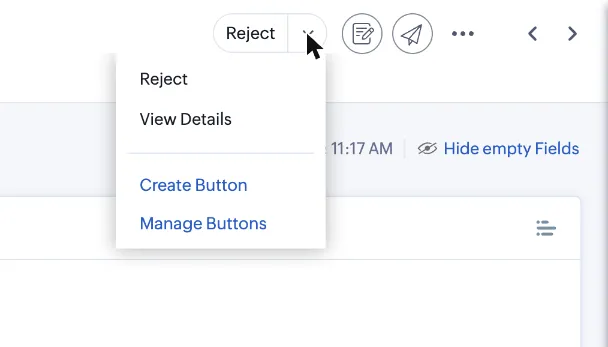
On a match, click Reject to turn it down, or click the arrow and then View Details to see the match in Talent Unlimited.
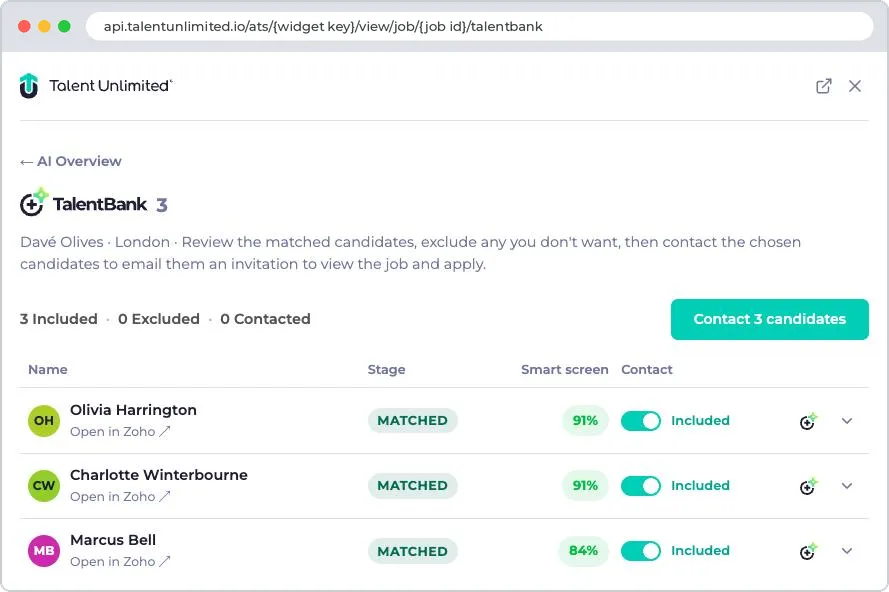
To invite matches to apply, open the job’s TalentBank matches view, choose who to include, then click Contact candidates. Each one gets an email inviting them to view the job and apply.
The match’s Status in Zoho shows how it is going:
| Status | Meaning |
|---|---|
| Contacted | The candidate passed SmartScreen for this job |
| Accepted | The candidate is interested |
| Rejected | The candidate declined, or the match was turned down |
If you reject a candidate’s application for the job in Zoho, Talent Unlimited stops matching them to it.
When things update
Section titled “When things update”| Change | When it reaches the other side |
|---|---|
| A new application or job change in Zoho | Straight away, through the workflows |
| Results, notes and reports from Talent Unlimited | Straight away |
| Anything the workflows miss | At the next full check, every 2 hours |
Questions
Section titled “Questions”See the Zoho Recruit FAQ. If something isn’t working, see Troubleshooting.