

Widgets
Widgets are small Talent Unlimited pages that show the results for one job, application, candidate or interview. Open them from your applicant tracking system, intranet or any other tool, in a popup window or an iframe.
There are nine widgets:
| Widget | What it shows | URL ends in |
|---|---|---|
| Application overview | A summary of one application: SmartScreen, interview and CV | /application/{application id}/overview |
| Application SmartScreen | How the candidate scored against the job requirements | /application/{application id}/smartscreen |
| Application interview | The candidate’s AI interview results | /application/{application id}/interview |
| Interview analysis | The scores and insights for one interview | /interview/{interview id}/analysis |
| Interview transcript | Every question and answer, with audio | /interview/{interview id}/transcript |
| Candidate insights | The candidate’s CV and all their applications | /candidate/{candidate id}/insights |
| Job overview | Stats, details and the top candidates for a job | /job/{job id}/overview |
| Job candidates | Every candidate for a job, with filters and search | /job/{job id}/candidates |
| TalentBank matches | Candidates from your TalentBank who match a job | /job/{job id}/talentbank |
Build a widget URL
Section titled “Build a widget URL”Every widget URL has the same shape:
https://api.talentunlimited.io/ats/{widget key}/view/{record}/{id}/{widget}{widget key}is your workspace’s widget key. See Find your widget key.{record}isapplication,interview,candidateorjob.{id}is the ID of that job, application, candidate or interview.{widget}is the name of the widget, such asoverviewortranscript.
For example, the overview of the job with ID 3f6c2a9e-8b1d-4e57-9a0c-2d4b7e1f5a83 is:
https://api.talentunlimited.io/ats/{widget key}/view/job/3f6c2a9e-8b1d-4e57-9a0c-2d4b7e1f5a83/overviewFind your widget key
Section titled “Find your widget key”- In Talent Unlimited, go to Settings, then Integrations.
- Open your integration.
- In the Widget key section, click Copy.
Open a widget
Section titled “Open a widget”You can open a widget in a popup window or embed it in an iframe. We recommend a popup window: the widget’s close button and action buttons are built for it.
In a popup window
Section titled “In a popup window”Open the widget URL with window.open. A window about 900 pixels wide fits the widget.
<button id="open-widget">AI Insights</button>
<script>  document.getElementById('open-widget').addEventListener('click', () => {    window.open(      'https://api.talentunlimited.io/ats/{widget key}/view/application/{application id}/overview',      'talent-unlimited',      'width=900,height=1000'    );  });</script>
In a popup window:
- The close button (×) in the top right closes the window.
- The open button (↗) opens the same page in Talent Unlimited in a new tab, and closes the popup.
- After you use an action button, such as Shortlist, the popup closes itself.
Using the same window name, here talent-unlimited, means each click reuses one popup rather than opening a new one.
In an iframe
Section titled “In an iframe”Embed the widget URL in an <iframe>:
<iframe src="https://api.talentunlimited.io/ats/{widget key}/view/job/{job id}/overview" title="Talent Unlimited job overview" style="width: 100%; height: 900px; border: 0;"></iframe>An iframe works differently from a popup:
- The close button (×) does nothing. Close or hide the iframe from your own page.
- After you use an action button, the confirmation stays in the iframe.
- The widget does not resize the iframe. Give it a fixed height; the widget scrolls inside it.
- Links between widgets, such as View all candidates, open inside the iframe.
Widgets
Section titled “Widgets”Application overview
Section titled “Application overview”https://api.talentunlimited.io/ats/{widget key}/view/application/{application id}/overview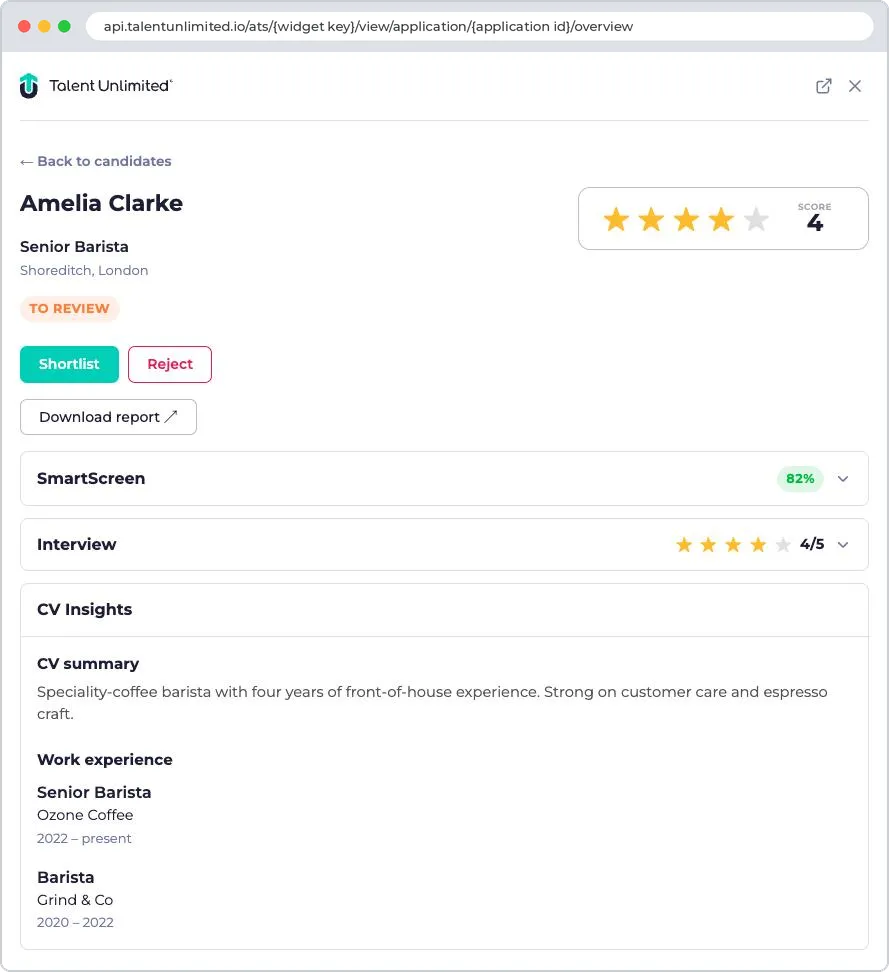
A summary of one application. It shows:
- The candidate’s name, the job title and location, and the application’s status.
- The interview score, once the interview is complete.
- Action buttons for the application’s status. See Action buttons.
- Download report, once a candidate report is ready.
- SmartScreen: the score, and each requirement with its score and reasoning. Click to expand.
- Interview: the score breakdown, insights and feedback, and a View transcript link. Click to expand.
- CV Insights: a summary of the CV and the candidate’s work experience.
The job title links to the job overview.
Application SmartScreen
Section titled “Application SmartScreen”https://api.talentunlimited.io/ats/{widget key}/view/application/{application id}/smartscreen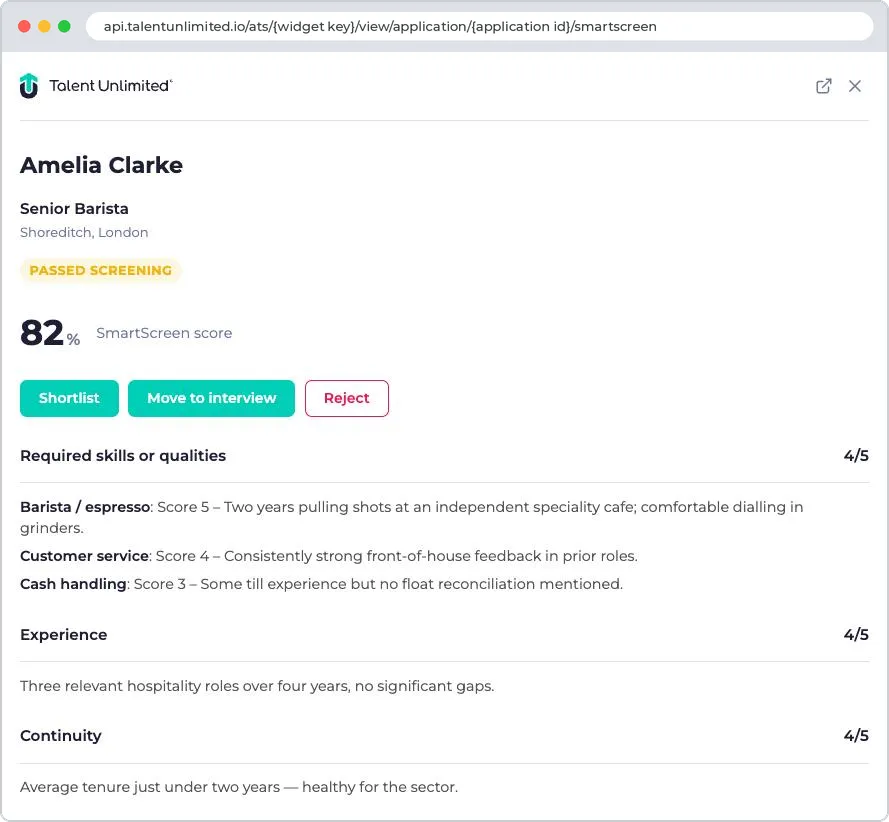
How the candidate scored against the job requirements. It shows:
- The candidate’s name, the job title and location, and the application’s status.
- The SmartScreen score, as a percentage.
- Action buttons for the application’s status.
- A score out of 5 for each section, with the reasoning:
- Required skills or qualities, with a score for each one.
- Qualifications, if the job asks for them.
- Experience, or Transferable skills.
- Continuity: how stable the candidate’s career history is.
If the application hasn’t been screened yet, the widget says No SmartScreen yet.
Application interview
Section titled “Application interview”https://api.talentunlimited.io/ats/{widget key}/view/application/{application id}/interviewThe application’s AI interview. What it shows depends on where the application is:
| The application | The widget shows |
|---|---|
| Has a completed interview | The interview analysis |
| Has an interview the candidate hasn’t finished | Interview in progress |
| Can move to interview | A Move to interview button, which invites the candidate |
| Hasn’t passed screening | Not ready for interview |
Use this widget when you know the application but not the interview.
Interview analysis
Section titled “Interview analysis”https://api.talentunlimited.io/ats/{widget key}/view/interview/{interview id}/analysis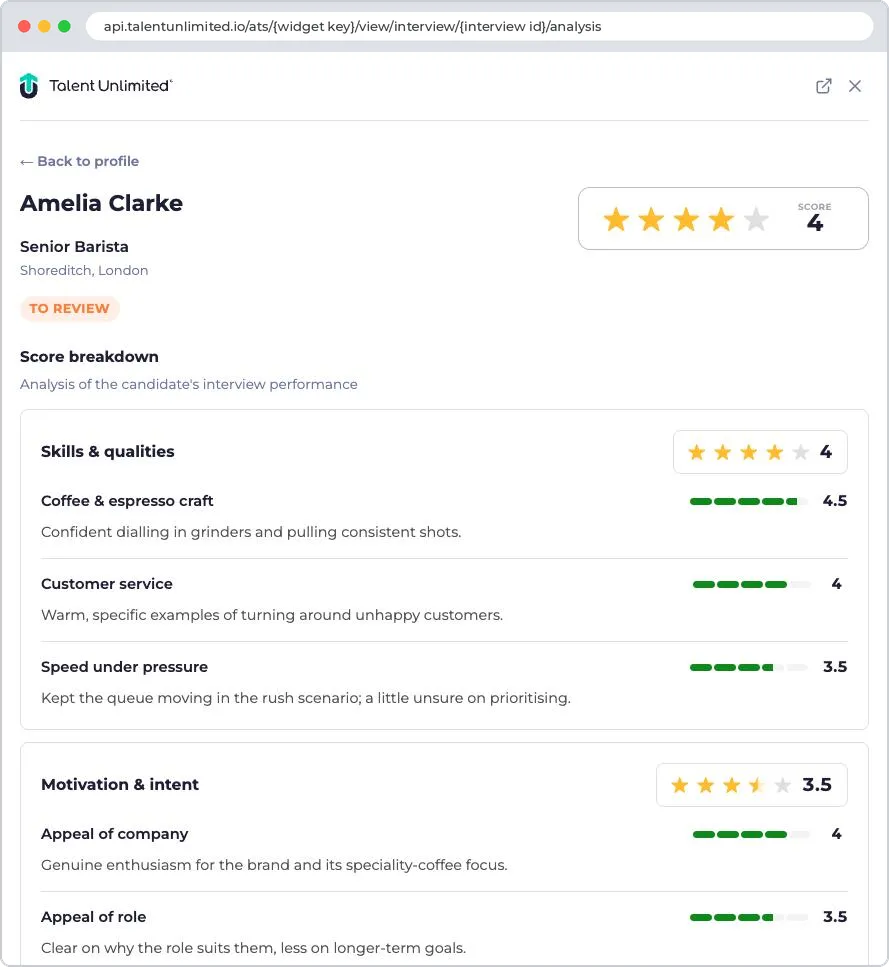
The results of one AI interview. It shows:
- The candidate’s name, the job title and location, the application’s status, and the overall score out of 5.
- Score breakdown, in two groups:
- Skills & qualities: a score and a comment for each skill the job asks for.
- Motivation & intent: scores for the candidate’s interest in the company and the role, and their strengths.
- Insights: an assessment of the candidate’s skills, and questions to ask in a next interview.
- The feedback and coaching tips the candidate received.
- A View transcript link to the interview transcript.
Interview transcript
Section titled “Interview transcript”https://api.talentunlimited.io/ats/{widget key}/view/interview/{interview id}/transcript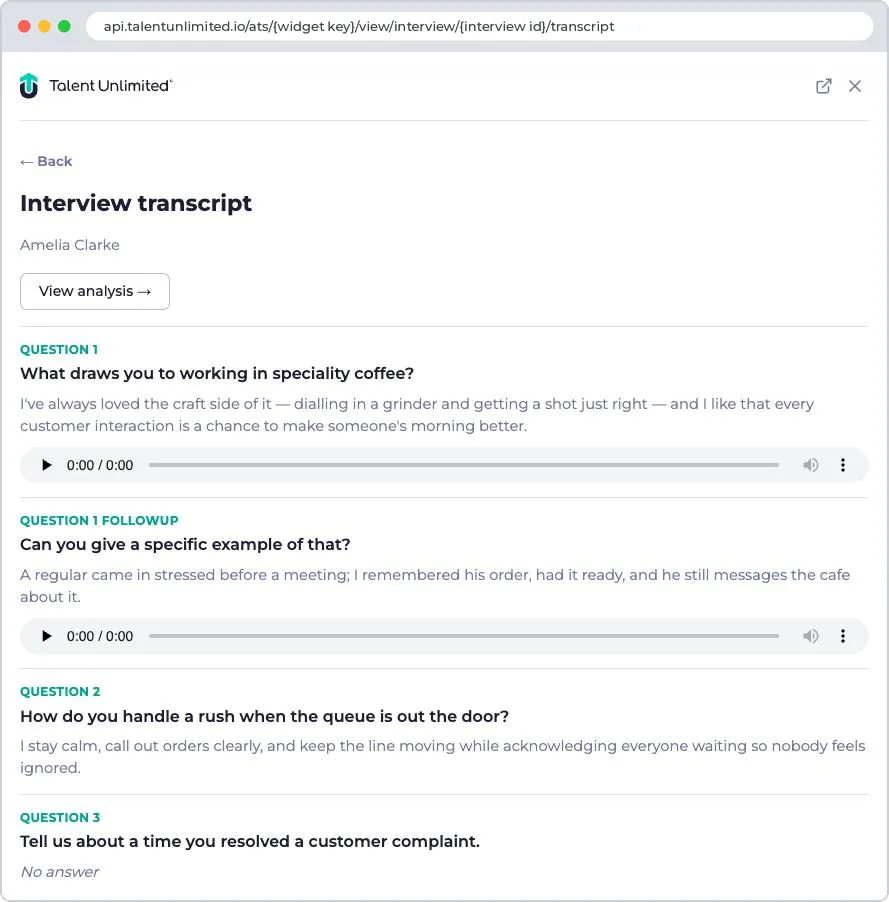
Every question in the interview, including follow-up questions, with the candidate’s answer and a recording of it. Questions the candidate skipped show No answer. The View analysis button goes back to the interview analysis.
Recordings play for 24 hours after the page loads. Reload the page to play them again.
Candidate insights
Section titled “Candidate insights”https://api.talentunlimited.io/ats/{widget key}/view/candidate/{candidate id}/insights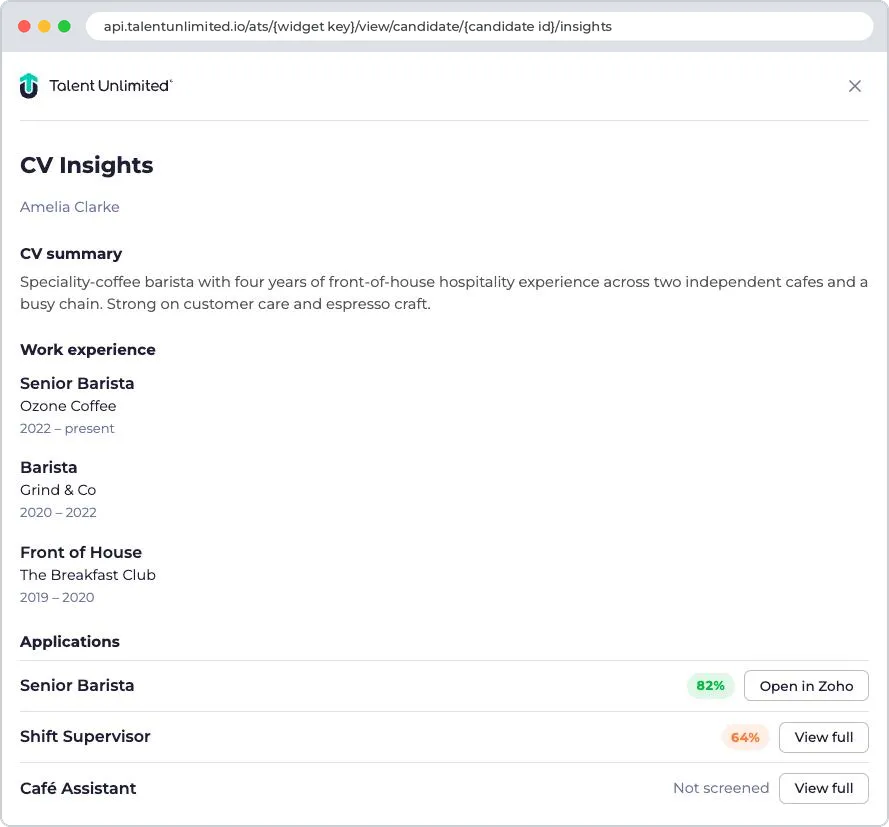
The candidate rather than a single application. It shows:
- A summary of the candidate’s CV.
- Their work experience: each role, employer and dates.
- Up to five of their applications, each with its SmartScreen score, or Not screened.
If the candidate hasn’t applied to a job that uses Talent Unlimited, the widget says so.
Job overview
Section titled “Job overview”https://api.talentunlimited.io/ats/{widget key}/view/job/{job id}/overview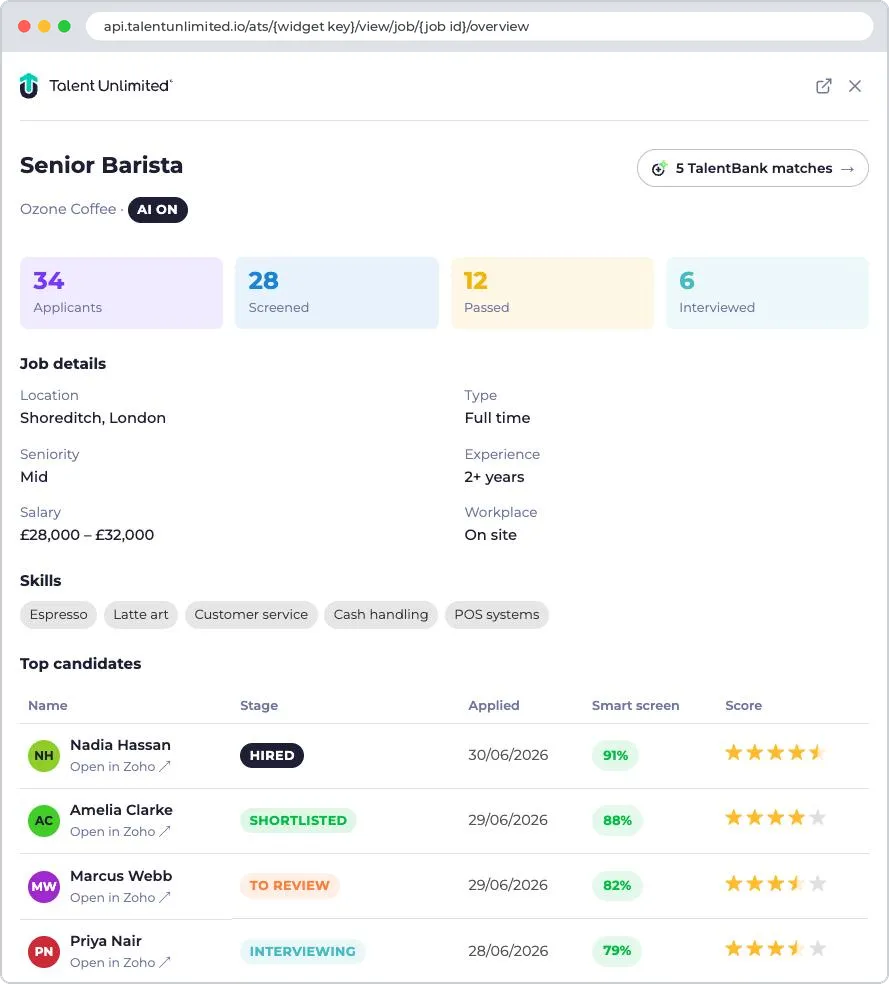
A summary of one job. It shows:
- The job title, company and status.
- A link to the job’s TalentBank matches, when there are any.
- The number of candidates who applied, were screened, passed screening and were interviewed.
- Job details: location, type, seniority, experience, industry, salary, workplace and language.
- Skills: the skills the job asks for.
- Top candidates: the top 10, ranked by interview score, then SmartScreen score. Click a name to open their application overview.
- View all candidates, which opens job candidates.
If the job doesn’t use Talent Unlimited yet, the widget shows an Enable AI Enrichment button.
Job candidates
Section titled “Job candidates”https://api.talentunlimited.io/ats/{widget key}/view/job/{job id}/candidates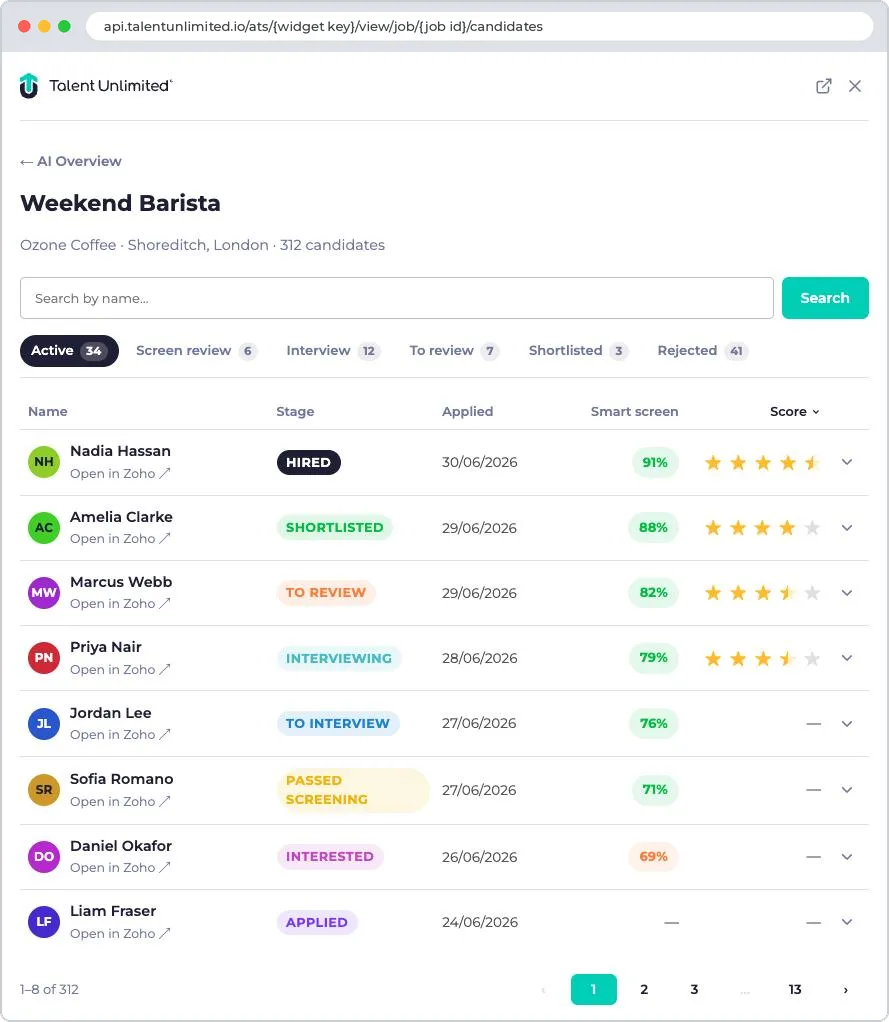
Every candidate for one job, 25 to a page. Each row shows the candidate’s stage, the date they applied, their SmartScreen score and their interview score. Expand a row to see their SmartScreen and interview results, a CV summary and action buttons.
You can search by name, filter by tab, and sort by any column. To open the widget with these already set, add them to the URL:
| Parameter | Values | Default |
|---|---|---|
status |
active, screen_review, interview, to_review, shortlisted, rejected |
active: every candidate who hasn’t been rejected |
sort |
name, stage, applied, smartscreen, score |
score: interview score, then SmartScreen score |
dir |
asc, desc |
desc |
search |
Part of a candidate’s name | None |
page |
A page number | 1 |
For example, the shortlisted candidates in name order:
https://api.talentunlimited.io/ats/{widget key}/view/job/{job id}/candidates?status=shortlisted&sort=name&dir=ascTalentBank matches
Section titled “TalentBank matches”https://api.talentunlimited.io/ats/{widget key}/view/job/{job id}/talentbank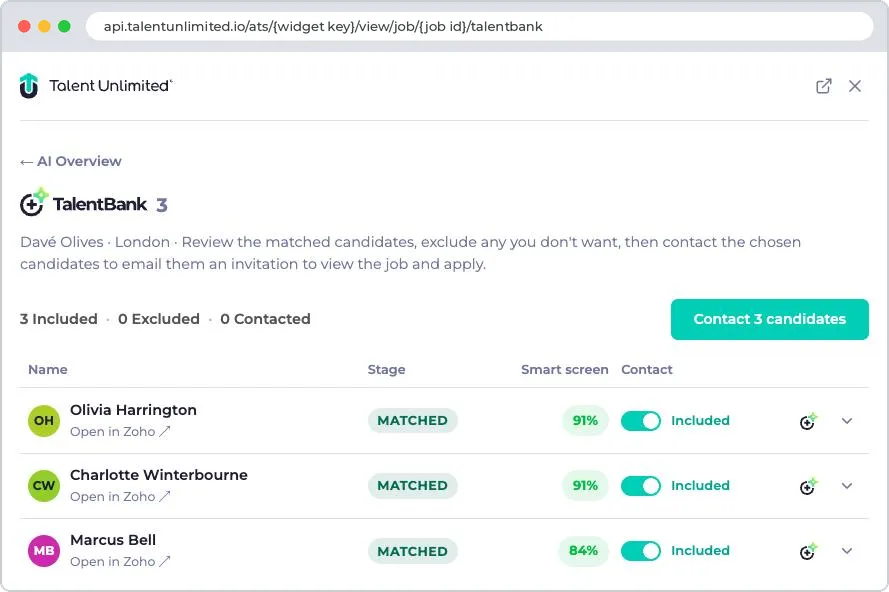
Candidates from your TalentBank who match the job, highest SmartScreen score first. Each row shows the candidate’s SmartScreen score and whether they’re included in the next invitation. Expand a row to see their SmartScreen breakdown and a CV summary.
To invite candidates, turn off Included for anyone you don’t want, then click Contact candidates. Talent Unlimited emails each one an invitation to view the job and apply.
Action buttons
Section titled “Action buttons”Some widgets have buttons that change an application, such as Shortlist, Reject, Move to interview and Hire. The buttons shown depend on the application’s status. The change happens as soon as you click, and is saved in Talent Unlimited.
Go back to the widget you came from
Section titled “Go back to the widget you came from”The application overview, interview analysis and interview transcript widgets can show a back link. Add back to the URL, set to the path of the widget to go back to:
https://api.talentunlimited.io/ats/{widget key}/view/application/{application id}/overview?back=/ats/{widget key}/view/job/{job id}/candidatesThe path must start with /ats/{widget key}/view/. Widgets add back for you when they link to each other.
Troubleshooting
Section titled “Troubleshooting”Access denied
Section titled “Access denied”If a widget shows ERROR 401 and Access denied, the widget key in the URL is wrong. Check it against the key in Talent Unlimited. If the key was regenerated, update your URLs with the new one.
Not found
Section titled “Not found”If a widget shows Not found, there is no record with that ID in your workspace. Check that the ID is for the right kind of record: for example, a job ID in a /job/ URL.